
This page will show you how to create and configure a formula field.
This page offers clear instructions for creating and configuring formula fields in Jira. Formula fields are dynamic and enhance your Jira projects by enabling tailored data entry and display options.
To set up these fields, you will define their purpose, select suitable data types, and configure settings to ensure proper functionality.
Remember, you need Jira administrator permissions to create and configure formula fields. This helps maintain the overall structure and data integrity of your Jira site.
Create a field
Go to the Field overview page or the Get started page in the Your apps section of the sidebar navigation and click on the Create formula field button.
You can also browse the template gallery in the sidebar and create a field by clicking any of the templates. In that case you directly jump to Create and configure formula fields | Configure and previewas you have already selected a template.
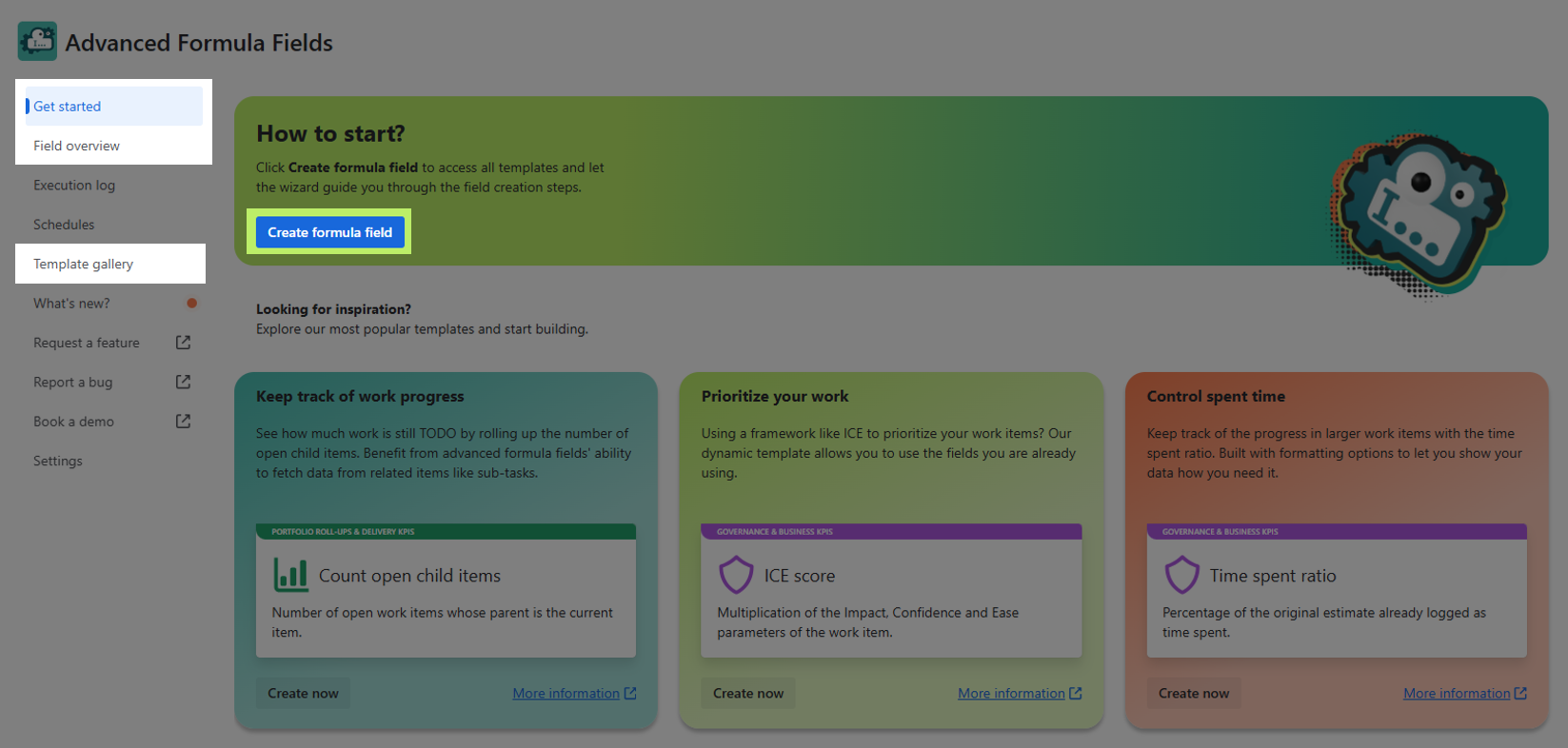
💡 Tip: The field overview works just like a control center — you can create new fields, check their status, and Manage existing formula fields / Field overview without jumping between multiple Jira admin screens.
Click on Create formula field to launch the guided creation process.
Select a template
Now you have two choices:
-
Select and potentially tweak one of the existing built-in Templates .
-
Create a custom text formula or custom number formula field.
Head over to to the Formula fields library to get some inspiration or example use cases.
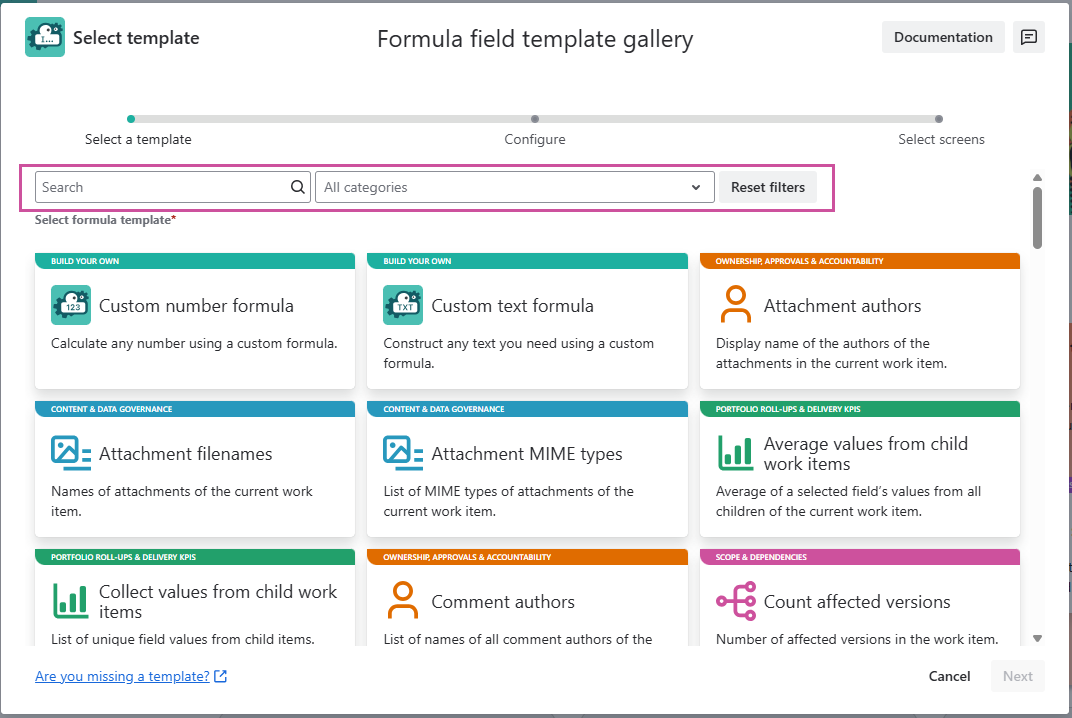
You can use the Category dropdown or search through the templates to see whether what you need is already built-in.
The Custom number formula and the Custom text formula templates can be employed for building individual fields for your own specific use cases with our built-in Expressions or Atlassian’s Jira expressions.
-
Click on Next after selecting the desired template.
Configure and preview
Most of the built-in templates don’t need any updates beyond that for the formula field to work. Just add a name and optionally and description and you would be good to go!
Take the Previous status template as an example. Simply select a work item in the preview section and the result will be displayed right away.
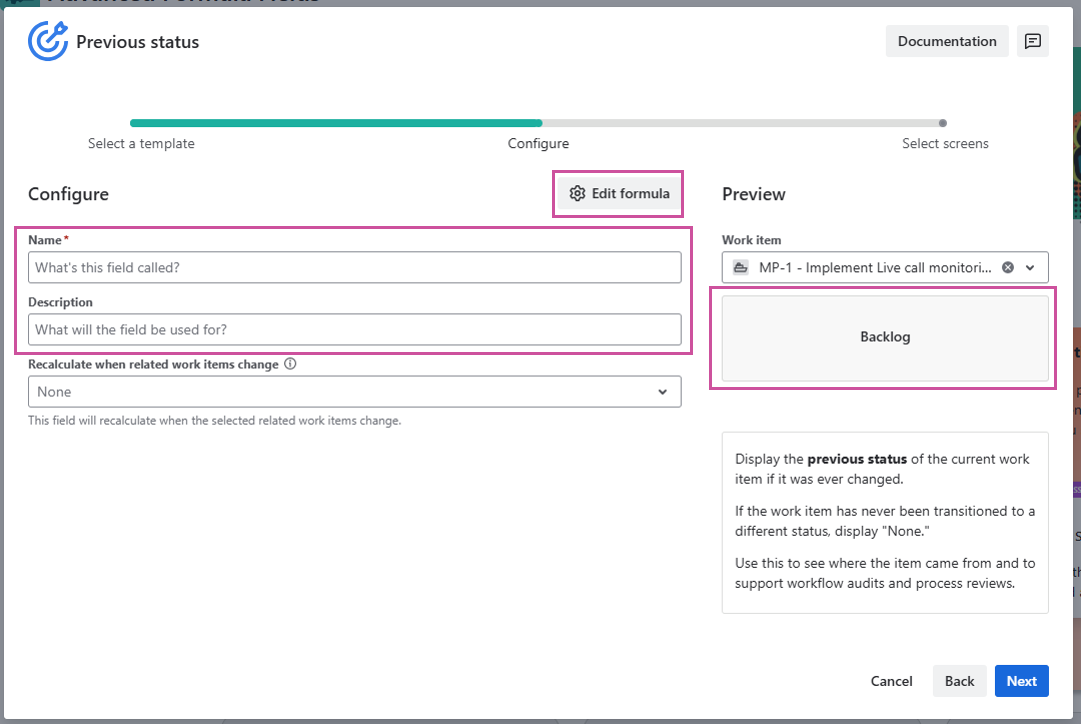
You can optionally set your field to Recalculate when related work items change, which can be useful in some cases but isn’t necessary for this simple template.
Our templates, however, also offer a feature to update and tweak the underlying expressions.
Edit mode
Once you click on Edit formula, you will see the expression behind each template. The Custom number formula and Custom text formula templates only offer the Edit formula mode as there are not pre-configured. Head over to the Formula fields library to get some inspiration.
Why would you need to tweak an expression? Let’s say Jira configurations can deviate from the “standard”.
Let’s take the Count unresolved blocking work items template as an example. Once you switch to the expert mode you will see the following expression:
%{count(filterByResolution(linkedIssues("is blocked by"), ""))}
As per default Jira uses the “is blocked by” link type to match blocking work items. However, a Jira administrator might have updated the link descriptions to “is blocked by work item” or “blocking work on”
In this case you can easily adapt the expression manually.
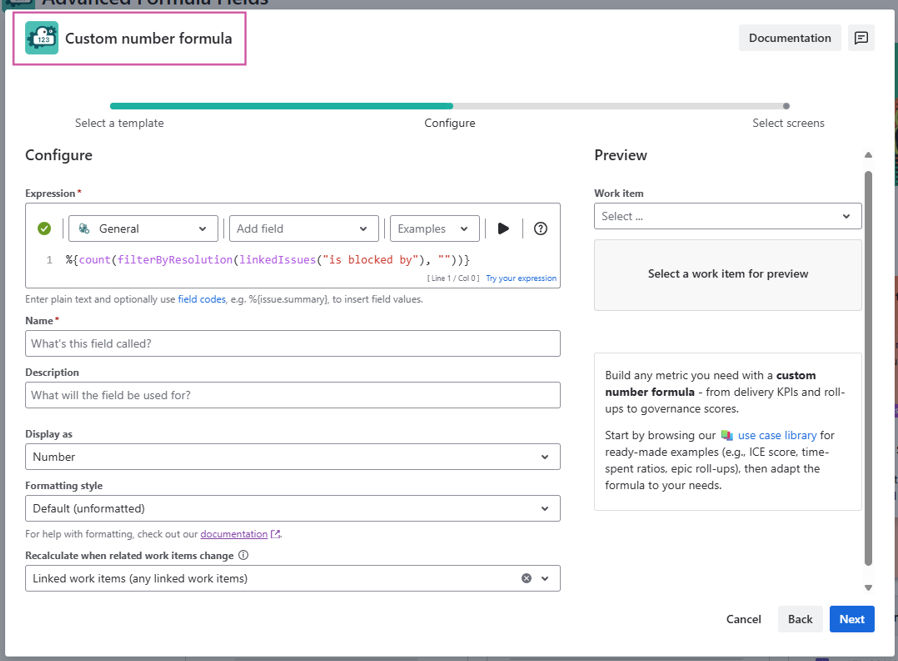
Once you switch to edit formula mode, the template name will automatically change to a custom number or text formula.
Field code lookup
If you are editing a custom expression and just see the field code (e.g. issue.cf10333) use the Add field dropdown and search for the field ID to look up the field name.
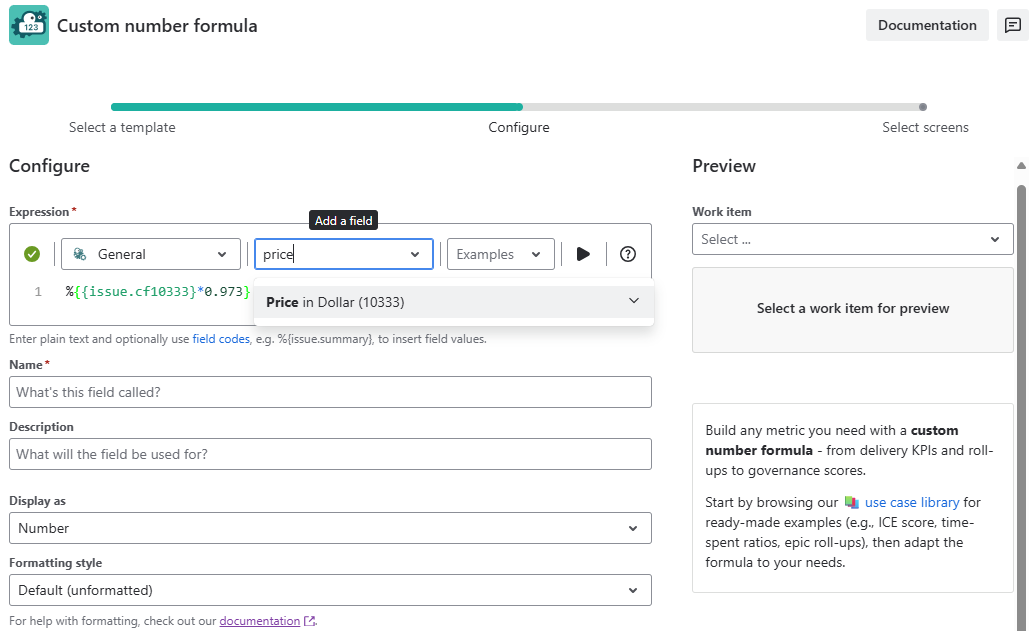
For more information about the expression editor and the expressions themselves, visit our JWT expression editor pages.
Some templates will require you to select one or several fields to retrieve values from, such as the ICE score. In such cases, select the fields of your choice before continuing.
If your template is a number formula field, optionally add some formatting to your expression, displaying it as a duration or progress bar. You can learn more here: Display formats.
If your field is a text formula field instead, you can optionally use markdown to use bolding, lists or linebreaks in your fields. You can learn more here: Markdown in advanced text fields
You can also style your fields with icons, background and text color based on simple rules. You can learn more here: Conditional color formatting.
Click on Next after your happy with the results.
Select screens
Search and select the screens where you would like to display the value of your formula field.
You can view up to 1.000 screens at once. Use the search filter to find specific screens.
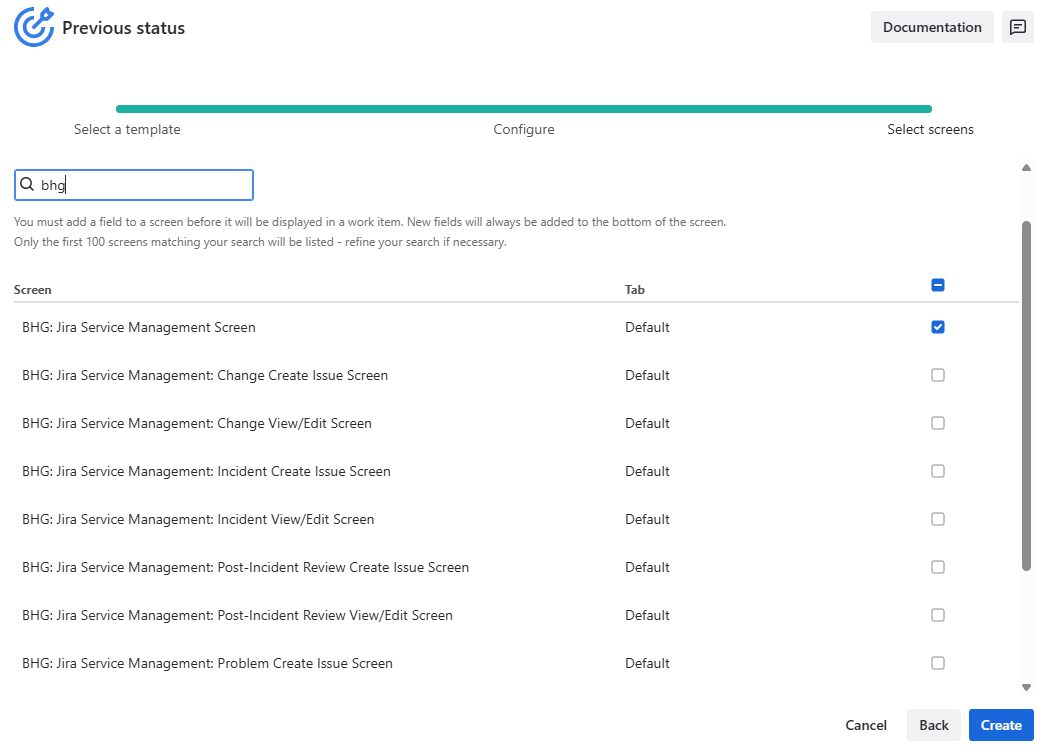
Once selected, they will show in the selected screens tab.
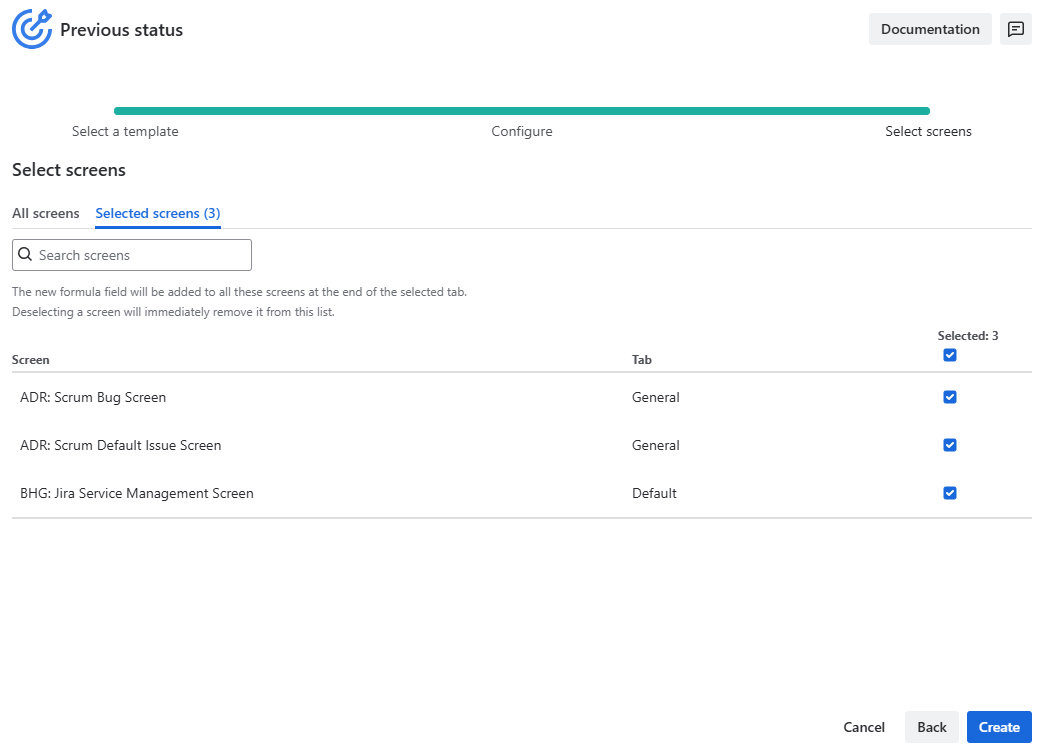
Note: Using the Select All/Deselect All checkbox at the top of the list will only select or deselect the screens that are currently visible.
Click on Save and confirm to finally create the formula field.
Update the work item layout (optional)
After you’ve associated your formula field with the relevant screens, you may want to update the work item layout so the field becomes visible/prominent to users. https://support.atlassian.com/jira-software-cloud/docs/configure-field-layout-in-the-work-item/
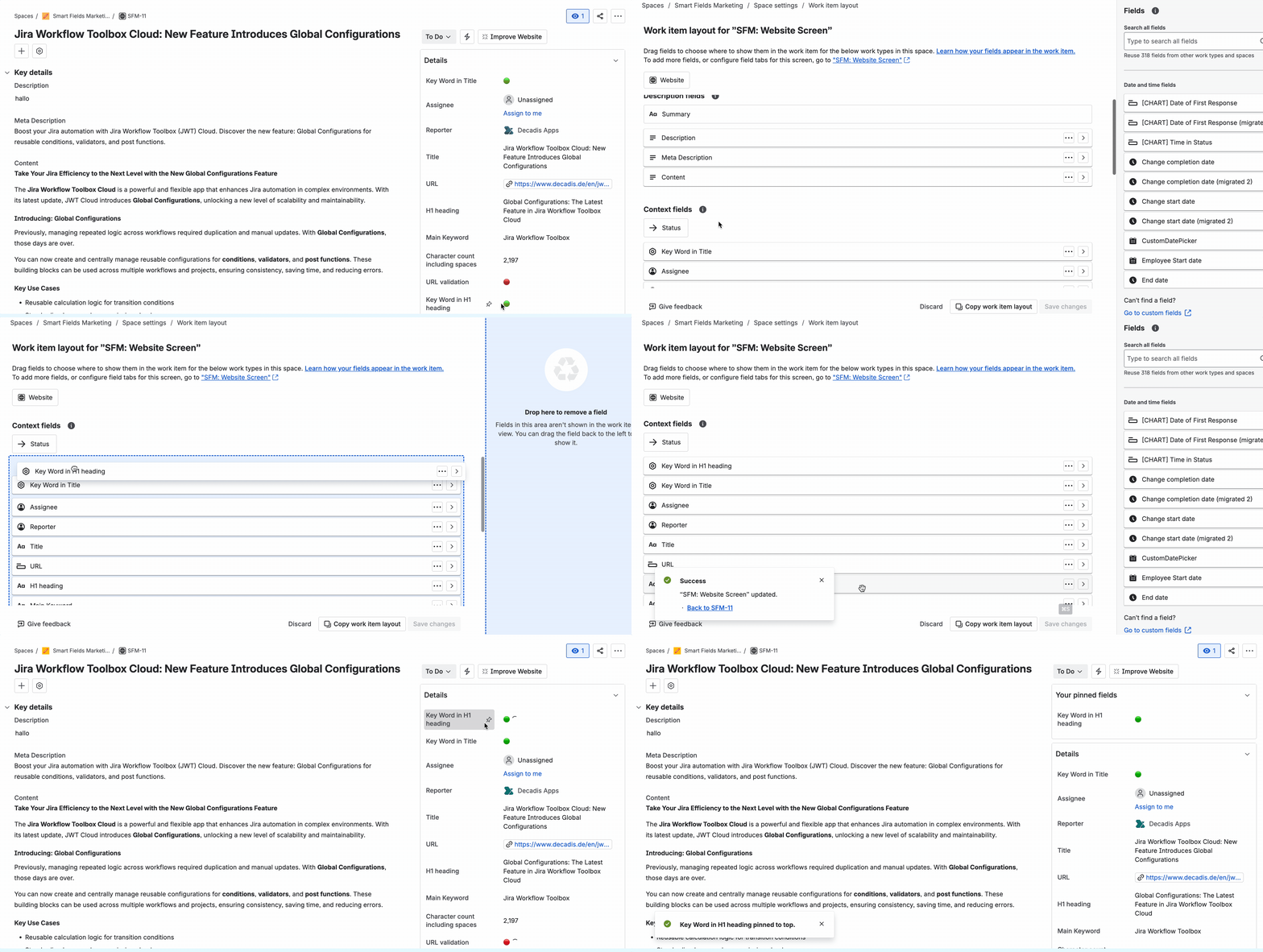
After adding a field to the screen it will automatically be available in the Context fields section of the work item layout.
-
Open a work item from the project where the formula field is available.
-
Click Configure → Layout (or Edit layout in the top-right corner).
-
Find your new formula field in the list of available fields and drag it to the desired section of the layout.
-
Use the pin icon to keep important fields—like calculated metrics or key status indicators—always visible at the top of the issue view.
Tip: Pinned fields remain visible even when sections are collapsed, making it easier for teams to monitor essential calculated values at a glance.
By default your new formula field will be created with a global context and will be available for all projects and work types, so it is not necessary to add or edit contexts for it to be viewed.
If you want to edit its context, you can do so from the Field overview page or the native Jira custom field page, just like for any other Jira custom field.
Atlassian is changing the way fields are managed.
To use any field in a space (project) you must associate it with a space via the relevant field schemes (and the underlying field configurations).
As the changes are rolled out progressively your site might be impacted.
Test your configuration and recalculate
Test your new or updated configuration by browsing individual work items where your field appears on the screen or layout before recalculating a large number of work items.
Once you're confident that the calculation works as expected, return to the field overview to recalculate or initialize values for multiple work items (e.g., entire projects, spaces, or the current sprint).
Find more information on recalculating formula fields and optimization tips here: