
Displays the labels of the sub-tasks of the current work item if there are any.
If there is nothing to display, the result will be “None”.
Configuration
Select Custom text formula in the template gallery after clicking Create formula field.
Choose General in the parsing mode dropdown. Click here for additional information.
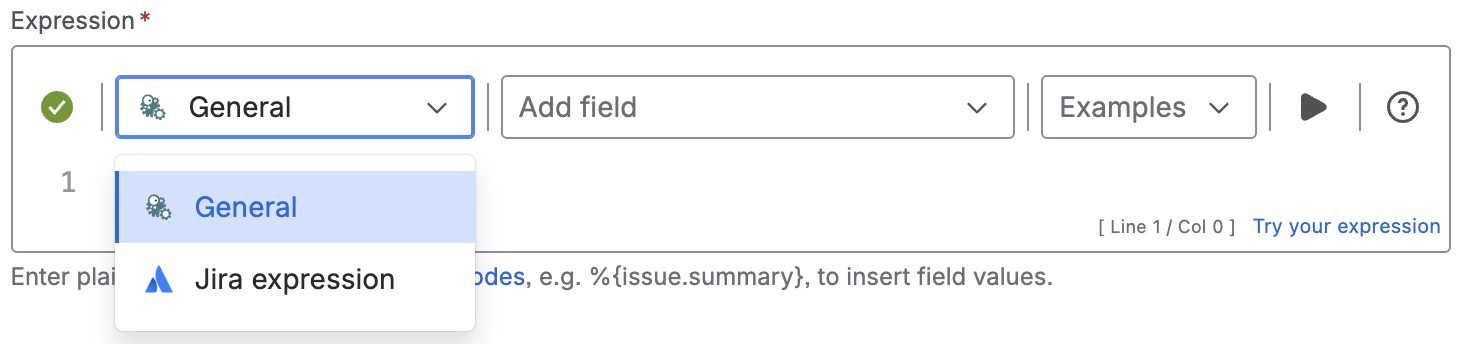
Expression
Expression
General expression:
%{distinct(fieldValue(%{issue.labels}, subtasks()))}
Used parser functions
The links lead to the JWTC documentation because the parser functions are shared functionalities.
Details
1. What does the expression do?
The expression collects all the labels from the sub-tasks of the current work item, removes any duplicates, and returns them.
2. Step-by-step breakdown
-
%{...}: This syntax is used to evaluate the expression as an advanced expression. -
subtasks(): This function gets all the sub-tasks of the current work item. -
fieldValue(%{issue.labels}, subtasks()): For each sub-task found, this function retrieves the value of the Labels field. -
distinct(...): This function takes the list of labels from all sub-tasks and removes any duplicates, so each label appears only once.
3. Examples
-
If your work item has three sub-tasks with these labels:
-
Sub-task 1: bug, urgent
-
Sub-task 2: enhancement, urgent
-
Sub-task 3: documentation
The expression will collect all labels: bug, urgent, enhancement, urgent, documentation. After removing duplicates, it will display: bug, urgent, enhancement, documentation.
-
4. Real-life use cases
-
Quickly see all the unique labels used across sub-tasks of a work item, helping you understand the types of work being done (e.g., bug, enhancement, documentation).
-
Use this in dashboards or reports to filter or group work items by the types of sub-tasks they contain.