
Field overview
The field overview is your central hub and preferred way for creating new formula fields and configuring existing ones.
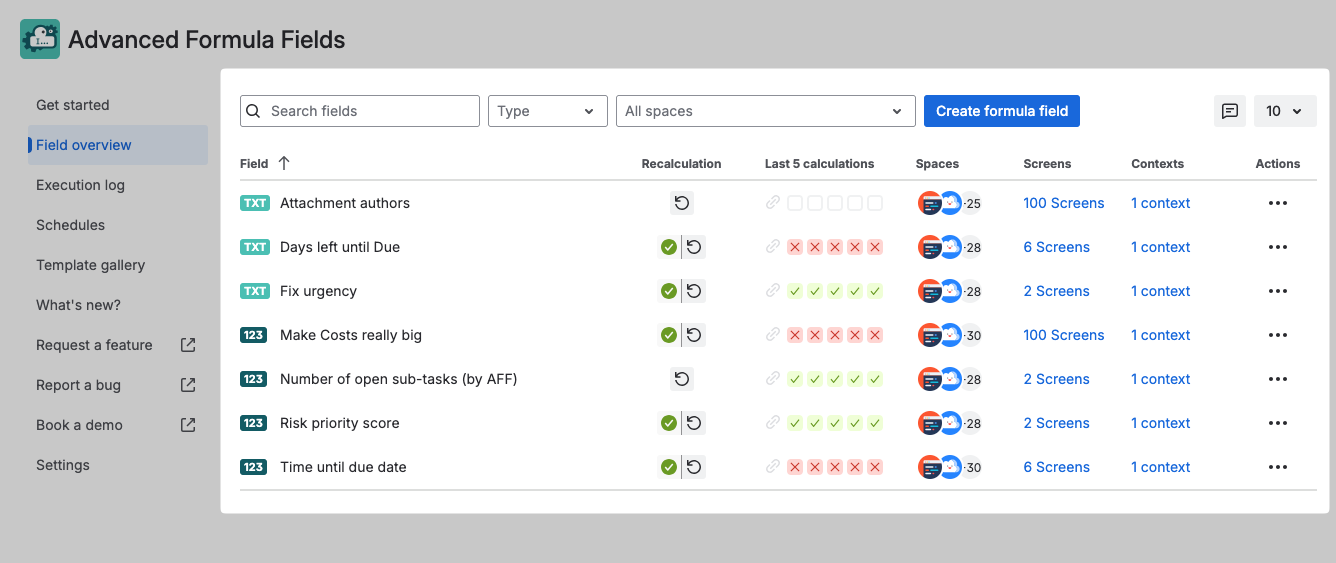
Search & filter
Once you have created a few formula field you can use the search and filter options to quickly navigate to the field you want to update.

The spaces dropdown will filter the formula fields by the field schemes they are assigned to (s. Manage existing formula fields / Field overview | Spaces below ).
Next to the field type (either text or number) and the name of each formula field which is displayed in the first column of the table you will find the following information.
Recalculation
When you create a new formula field, its value doesn’t exist yet on your existing work items.
A formula field is calculated only when:
-
the work item is viewed, updated or commented, or
-
the recalculation is triggered in the Field overview page.
Use the Recalculate option to initialize or update formula field values for multiple work items at once. Check out Recalculate formula field values for more information.
Last 5 calculations
Displays the execution status of the last 5 calculations of a field.
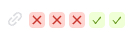
✅ The calculation was successful
❌ There was an error calculating the field
🔗 A link to the execution log which is then pre-filtered to show the executions of that specific field
Spaces
Atlassian is currently changing how fields are managed. The field schemes mentioned here might not be rolled out on your instance yet. The rollout should not affect existing fields.
The spaces column will list all spaces where the formula field is available based on the Field schemes it was added to.
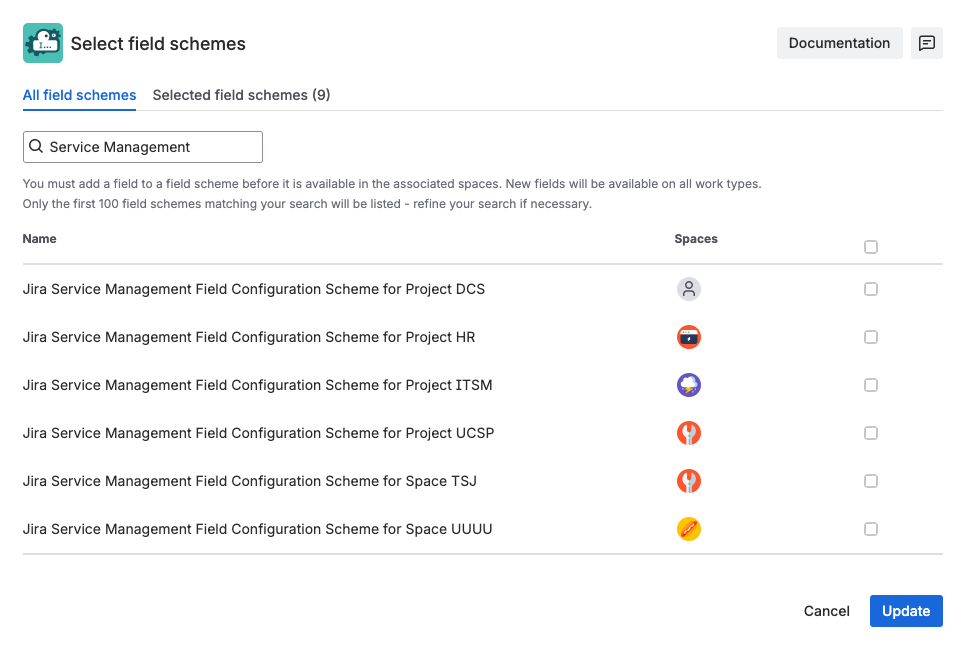
When working with a Jira site containing a large number of field schemes, selecting a scheme manually can be tedious. When associating a custom field with field schemes, you can use the search box at the top of the list to filter which screens are displayed.
The Selected field schemes tab only displays the schemes the field has been associated with.
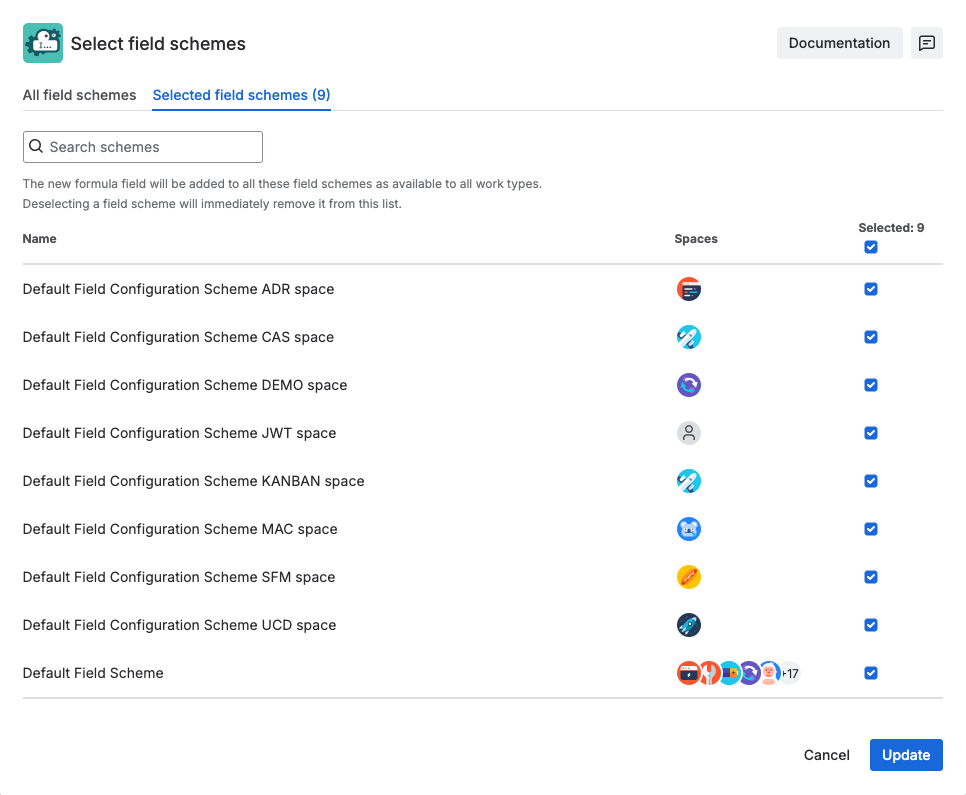
Note: Using the Select All/Deselect All checkbox at the top of the list will only select or deselect the field schemes that are currently visible.
Screens
Shortcut to the screen association of the field. When working with a Jira site containing a large number of screens, selecting a screen manually can be tedious. When associating a custom field with Jira screens, you can use the search box at the top of the list to filter which screens are displayed.
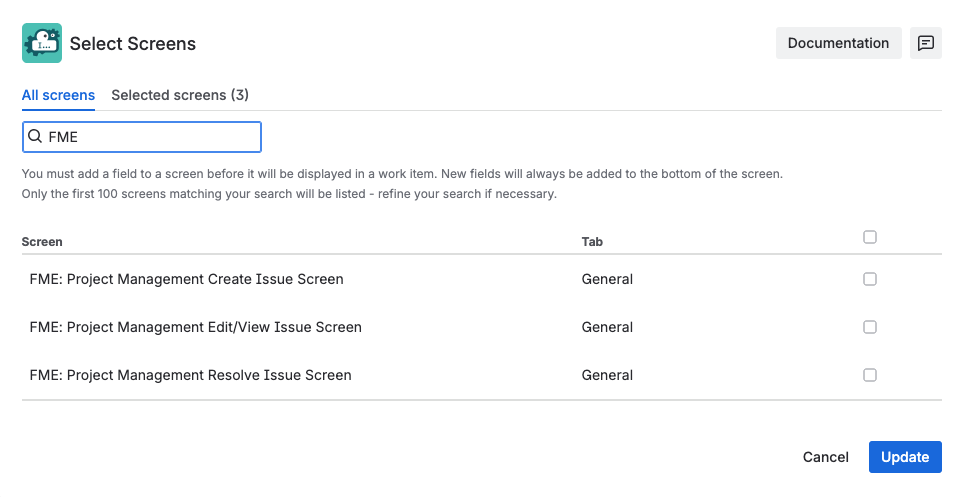
The Selected screens tab only displays the screen the field has been associated with.
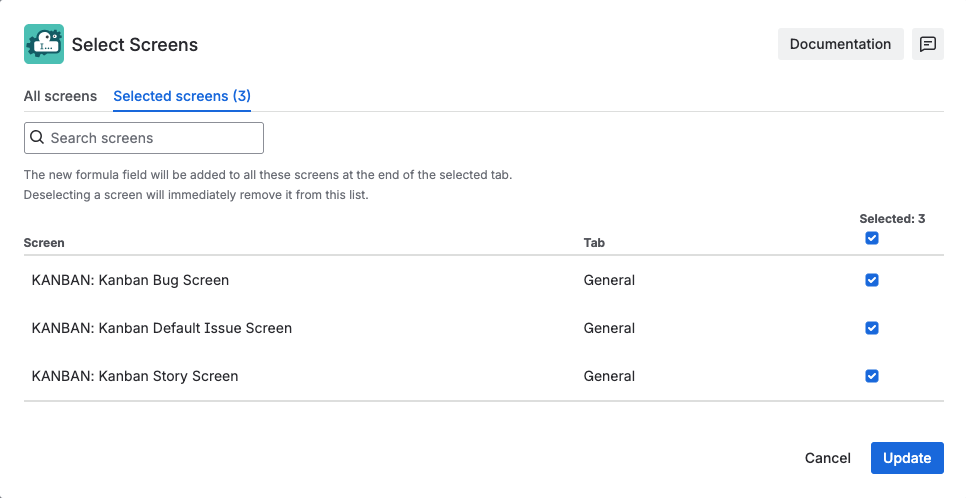
Note: Using the Select All/Deselect All checkbox at the top of the list will only select or deselect the screens that are currently visible.
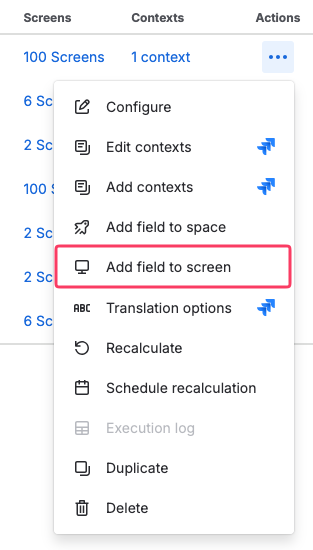
Alternatively you can use the “Add field to screen” operation.
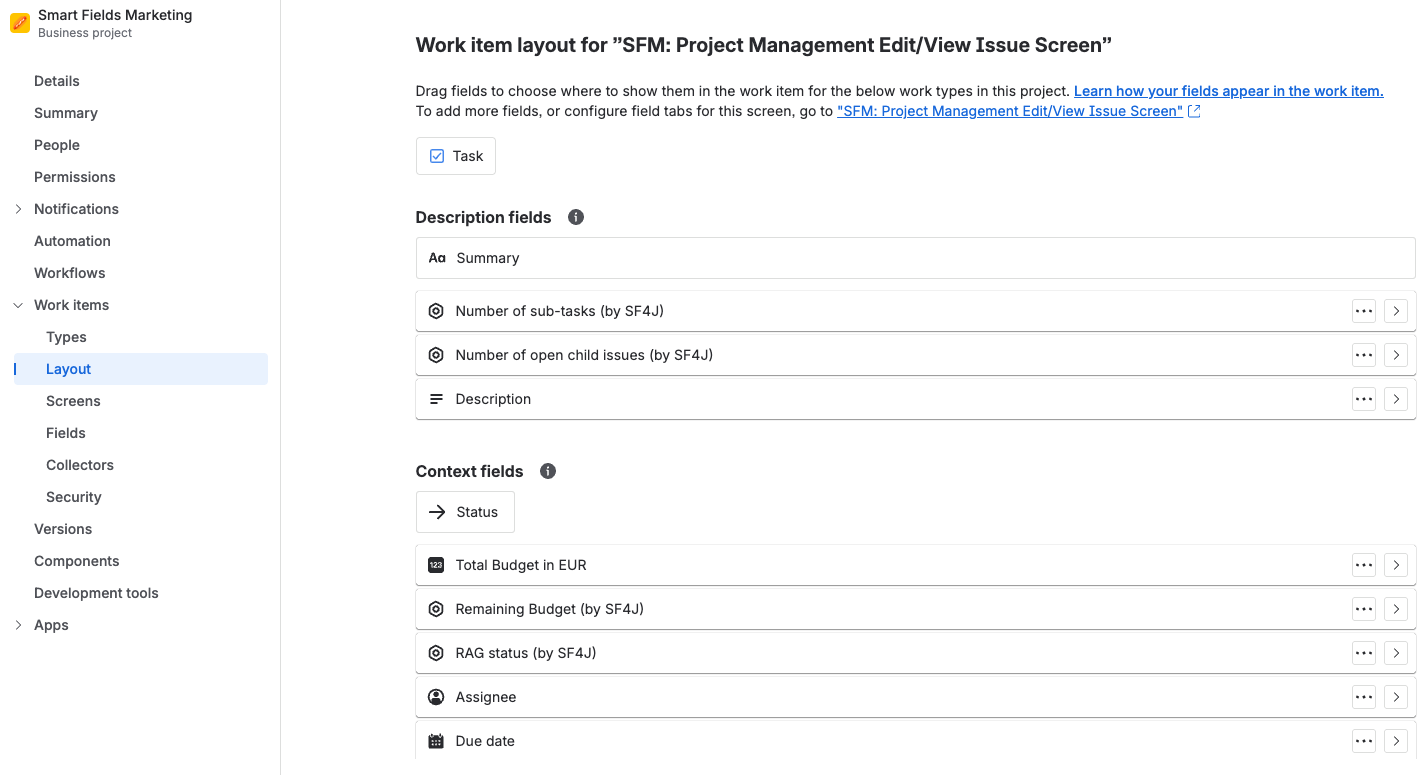
If you don’t see your formula field in a work items you might want to check out the work item layout. https://support.atlassian.com/jira-cloud-administration/docs/configure-issue-layout/ and place the field either in the Description fields or the Context fields section.
Contexts
Fields in Jira can be used across multiple projects and work types, but it’s rare for a single setup to meet all your needs. To prevent duplicates, administrators can create different versions of fields. This is what Jira refers to as a Context.
On the field overview you can inspect which context each formula field has.
For fields with multiple contexts (e.g. different calculations for individual work item types) all contexts are being displayed once you click on link in the Context column. Now you can directly jump to its configuration (the selection of projects and work item types) by clicking on the context name.
By default a formula field is created with a global context which makes it potentially available for all projects and work item types.
However, this might lead to fields being “calculated” even if they are not on a screen, simply because they are available which costs resources and might show unexpected results in the execution log
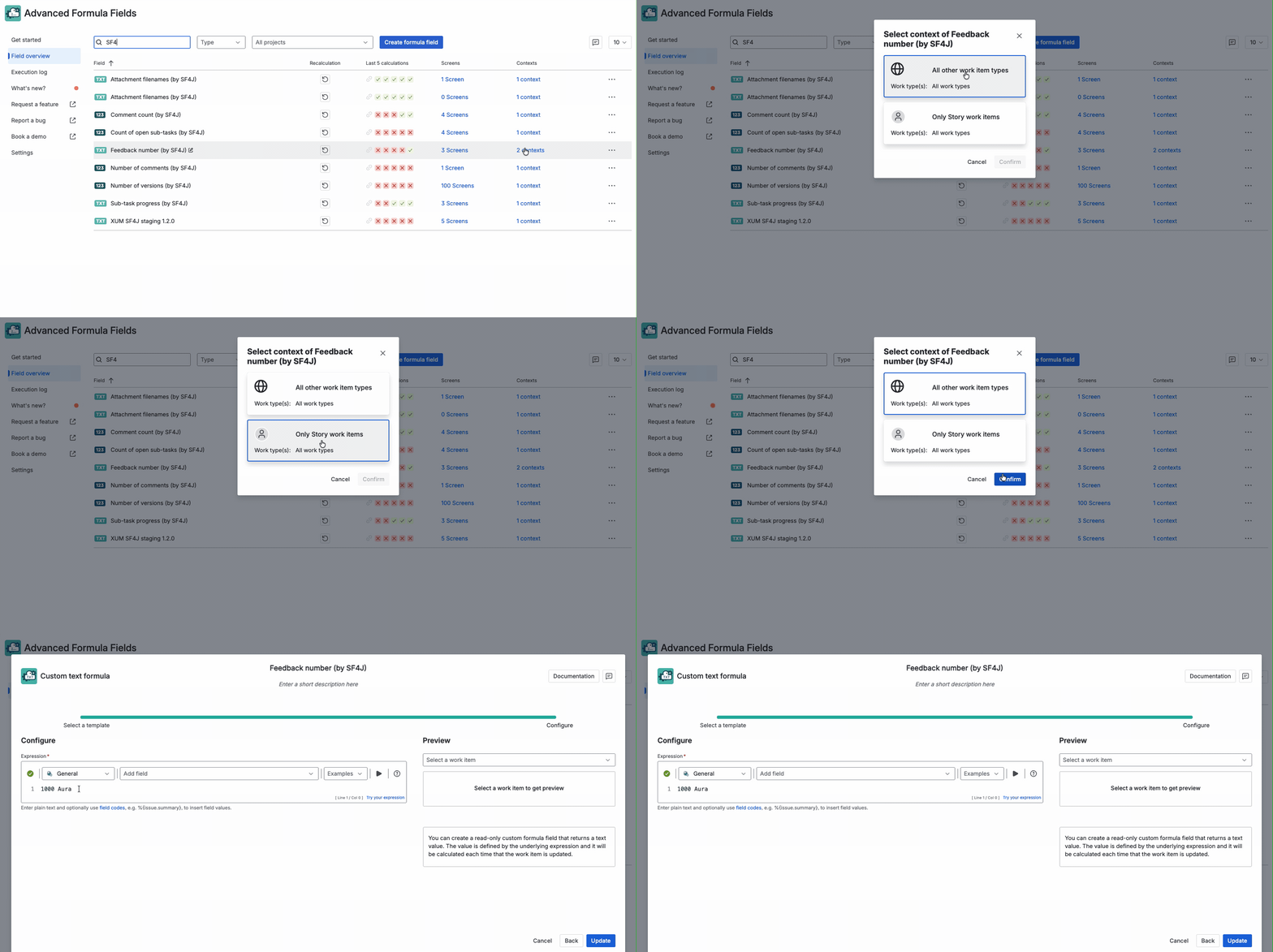
As an alternative you can use the context menu to edit and even add new contexts.
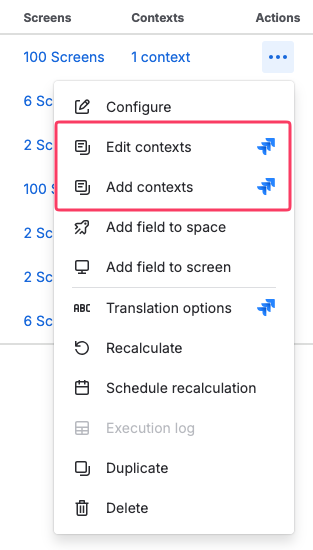
To improve the overall Jira performance it is highly recommended to limit the context to only those projects and work item types where the field is actually needed!
Edit a field
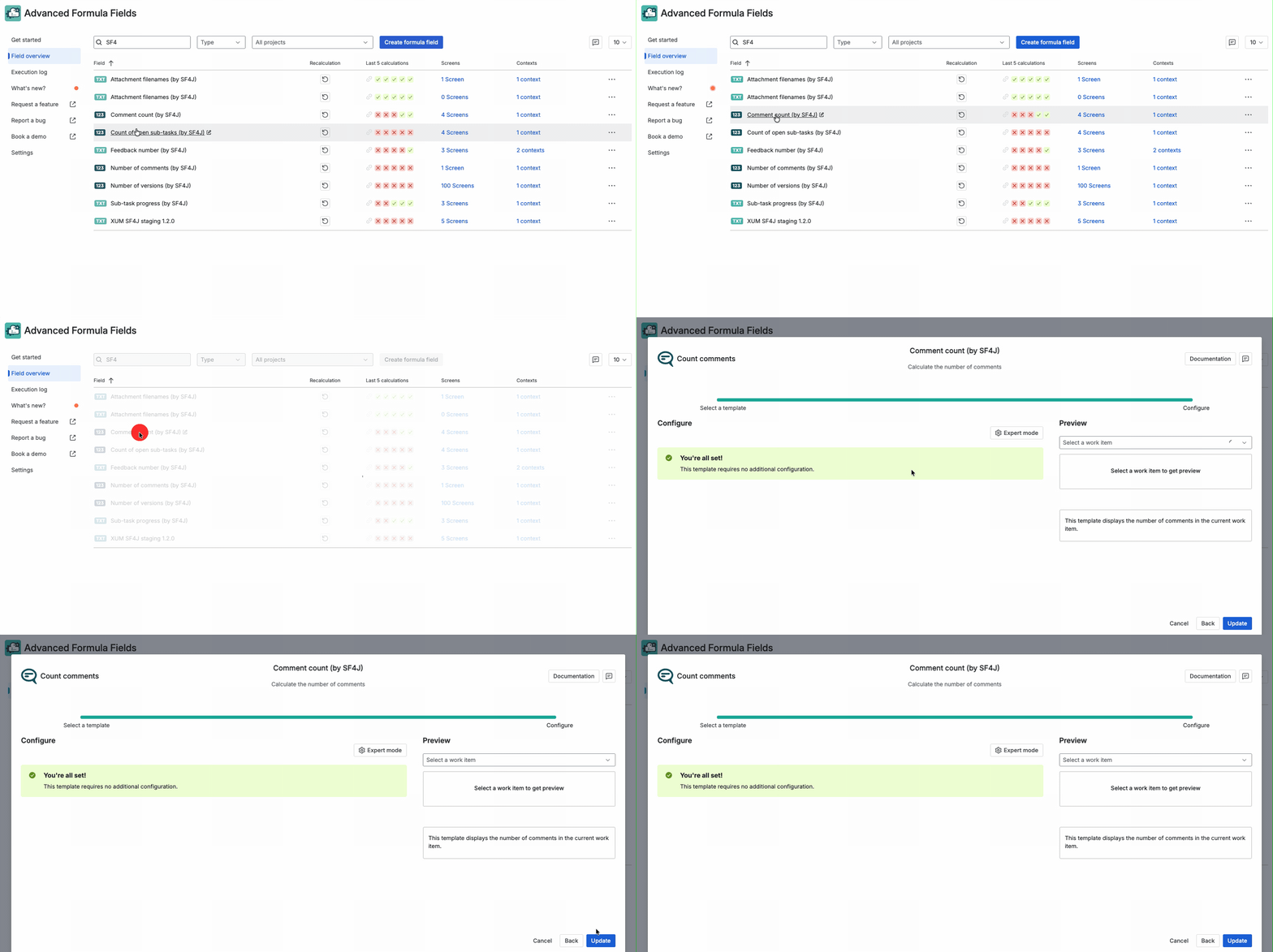
Once you hover over a field on the edit icon (pencil) you can edit details of the formula field (such as name and description) and its configuration. More information about the options can be found here: Create and configure formula fields
If you have multiple contexts configured, you can expand the context section and an edit button will be shown for each individual context.
Additional options / operations
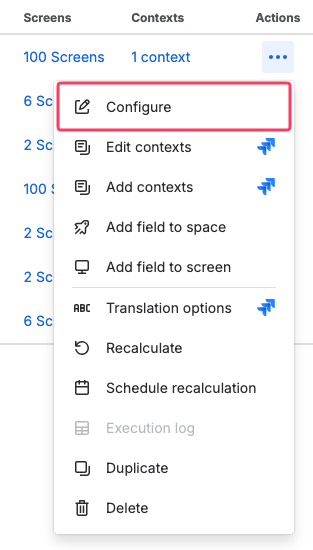
All operations that are marked with will open up the native built-in configuration pages.
Import and Export fields
You can export any existing formula field configuration to back it up or migrate it to another Jira instance via the Export option in the Action Menu and the Import formula field button at the top of the page. Learn more here: Export and import advanced formula fields .
Rename field and update configuration
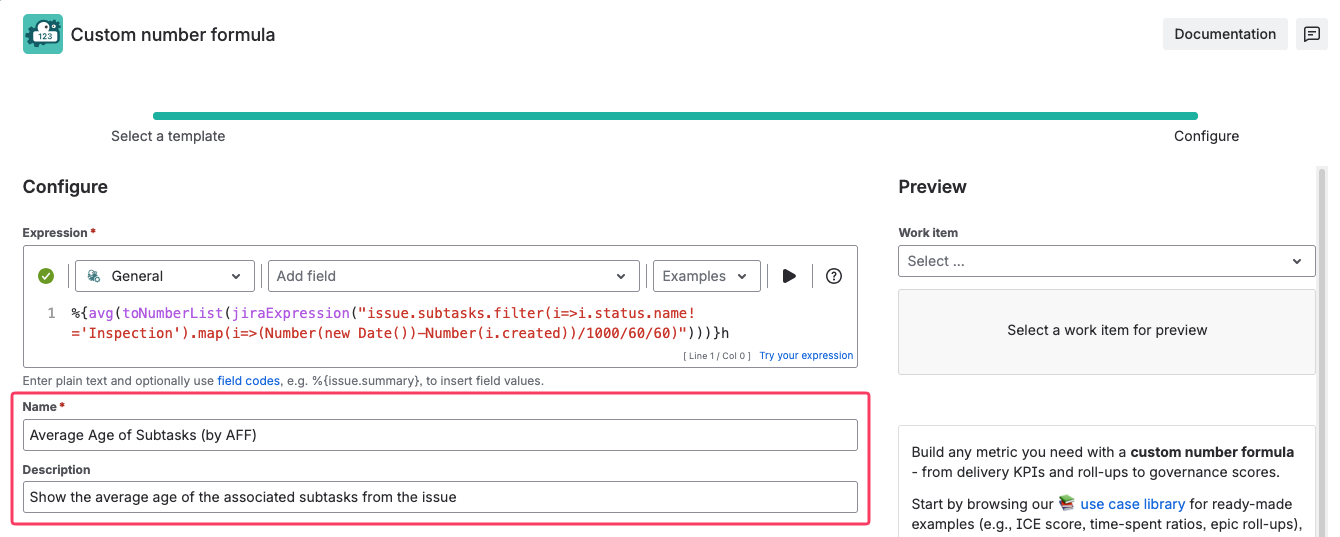
You can rename the field either in the field overview when clicking on the field name, hitting Configure in the action menu or by using the standard Jira option to edit fields.
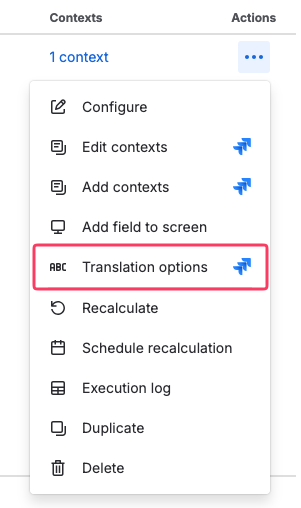
Translation options
Custom fields can be natively translated in Jira. Use this option to provide a translation.
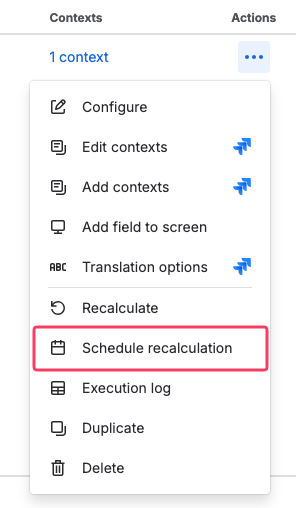
Schedule recalculation
Schedule automatic recalculation of fields at preset intervals.
Duplicate
Use this operation to duplicate the formula field.
Delete
Use this option to deleted the formula field from you site.