
On the field overview, you can import and export advanced formula fields. This is especially useful to backup configurations or move configurations from your sandbox to your production instance.
If the export and import instance differ significantly, importing fields might require manual adjustments to match work types, spaces, screens and schemes or field references.
Export a formula field
You can export any existing formula field configuration to back it up or migrate it to another Jira instance.
-
Navigate to the Field overview.
-
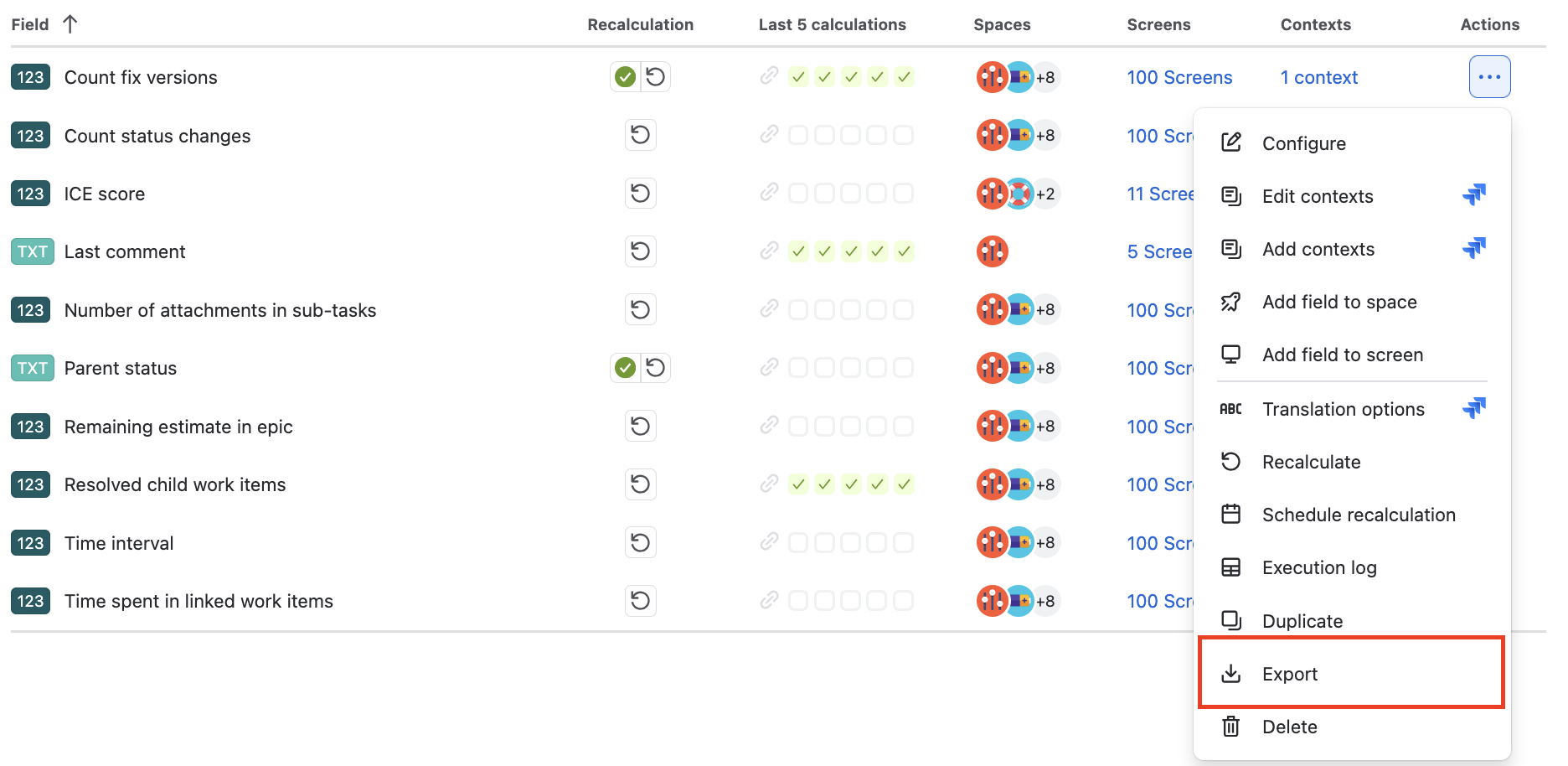
Click the
...(Actions) menu on the row of the formula field you wish to export. -
Select Export.
-
A JSON file containing the complete field configuration, associated work types, space contexts, screen schemes, and tabs will be downloaded automatically.
Import a formula field
To import a previously exported formula field configuration, go to the Field overview page and click Import formula field.

Complete the 3-step import modal:
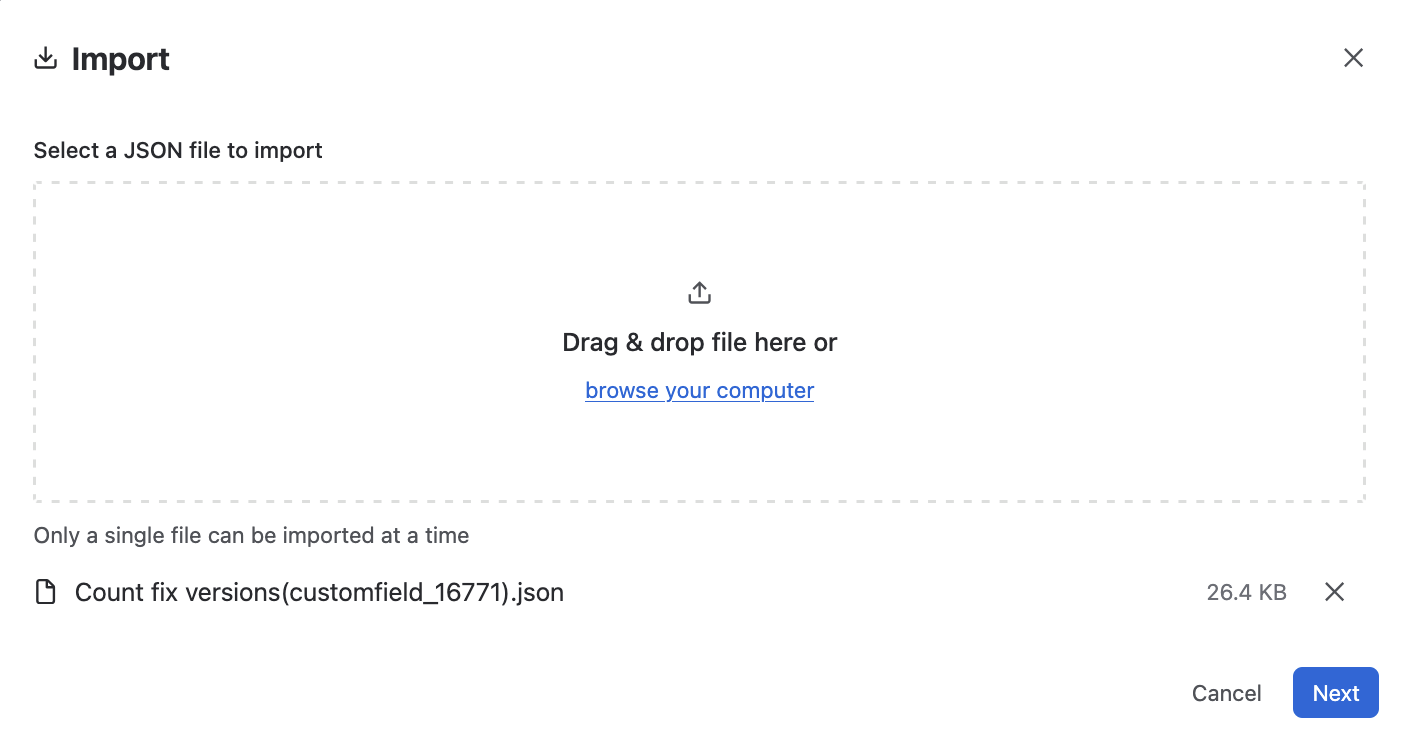
Step 1: Pick file
-
Drag and drop or upload your exported formula field
.jsonfile. -
Click Next once a valid file is loaded.
Step 2: Matching Contexts
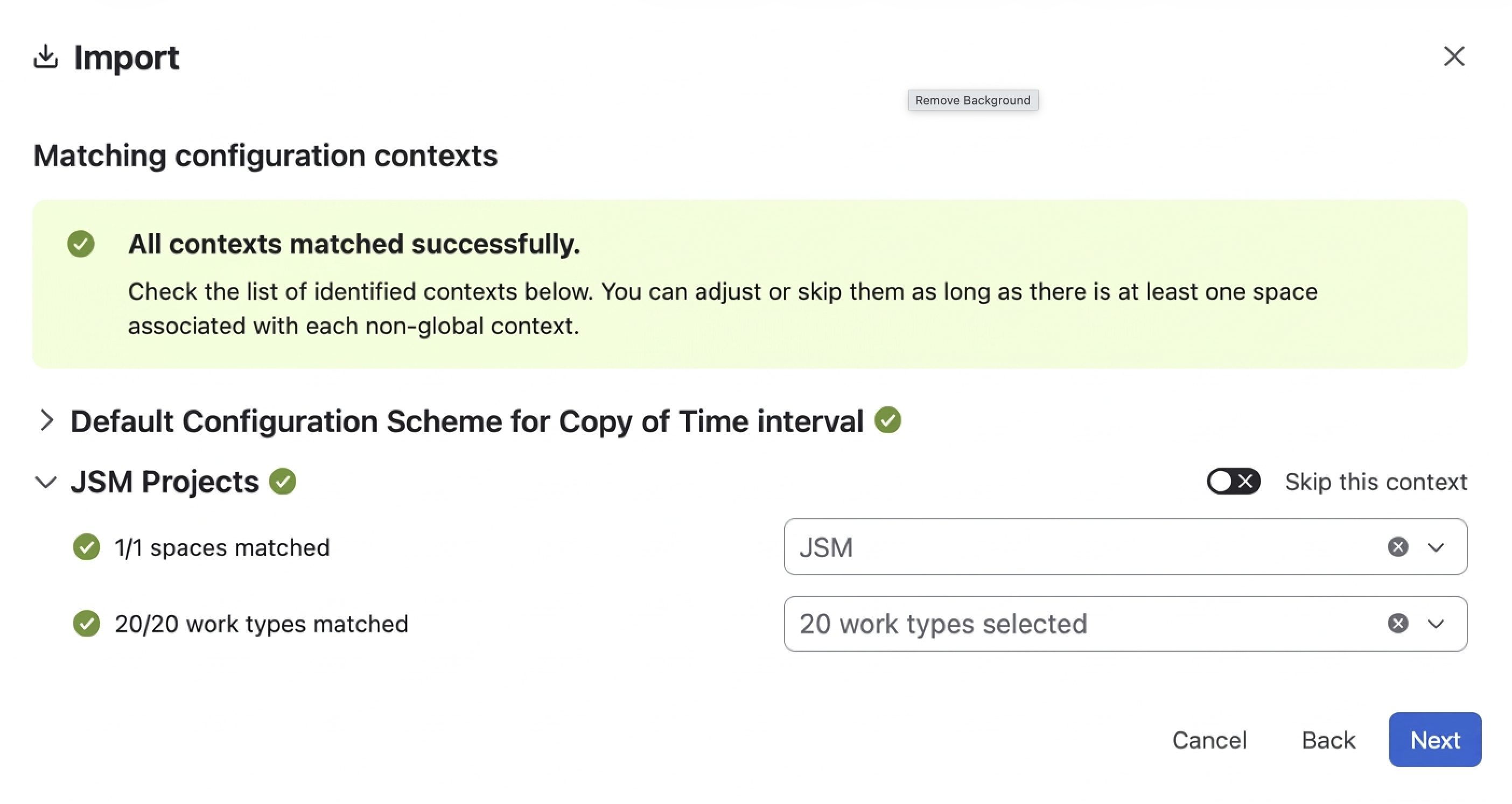
The wizard compares the imported contexts with the work types and spaces available in the target Jira instance. Review and adjust the proposed mappings before continuing, as they determine where the formula field will be shown.
-
Work types are matched by name, and spaces by space key.
-
Use the entity pickers to adjust mappings or skip contexts you do not want to import.
Green checkmark: All required matches were found.
Warning: Some matches are missing or ambiguous, but at least one valid match is available.
Error: No valid matches were found. Select at least one work type and space before continuing.
-
Only one Global context is permitted per field.
-
For space-specific contexts, space pickers show only spaces that are not already used by another context.
Step 3: Screens & Schemes
-
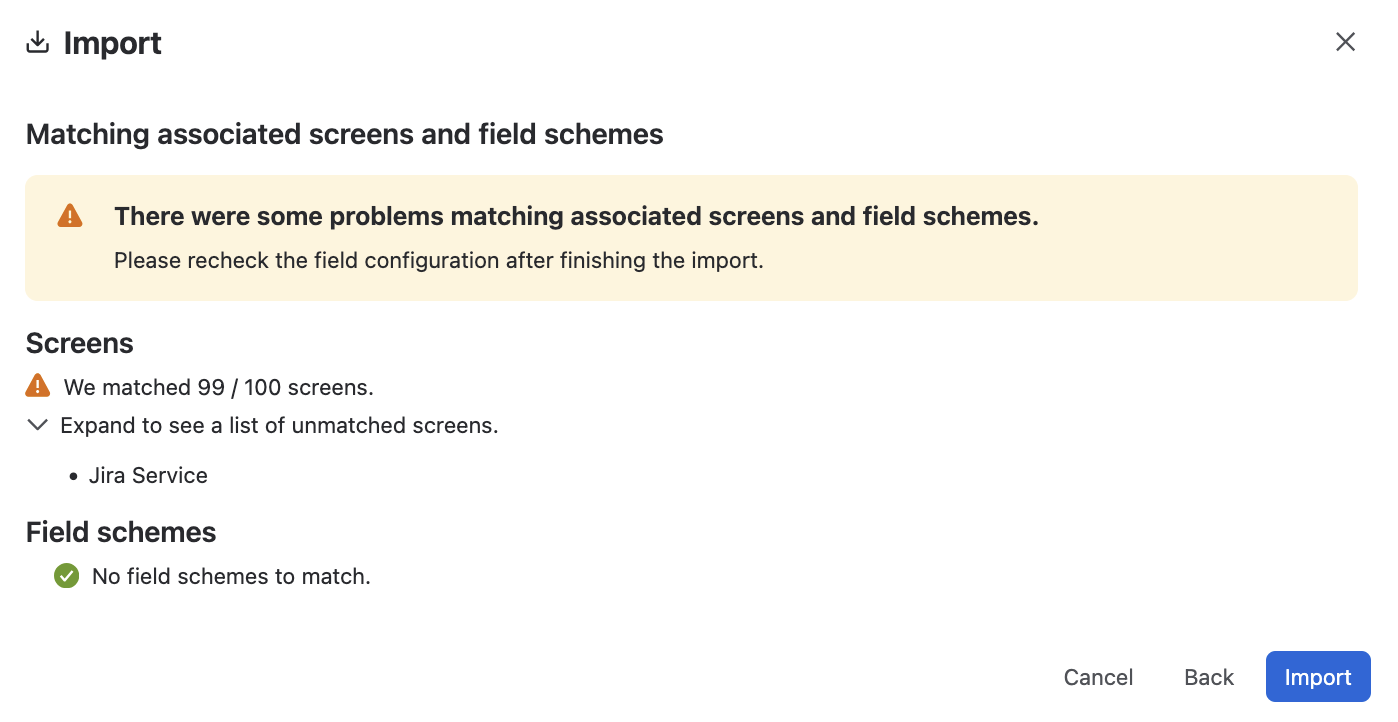
The wizard automatically matches screen, screen tabs and field schemes by name.
-
Review the summary of matched items. Expand the list to view unmatched items. If not everything got matched, you’ll need to adjust screens and schemes after the import finishes.
-
Click Import to finish creating the formula field.
Custom field parameters in expressions
Custom field references in formula expressions or template parameters are not automatically re-mapped during import. If the referenced fields do not exist in the target Jira instance, you may need to manually update the field parameters after import.