
With recalculation schedules, you can automatically run formula recalculations at defined times – so your values are ready whenever work starts.
This feature is unrestricted for Jira administrators.
Space administrators need be enabled via Settings to view or create recalculation schedules for fields in the current space, limited to its work items.
Create a new schedule
Clicking the Create new schedule button on the Recalculation schedules overview page opens a new window with two steps to set up the schedule.
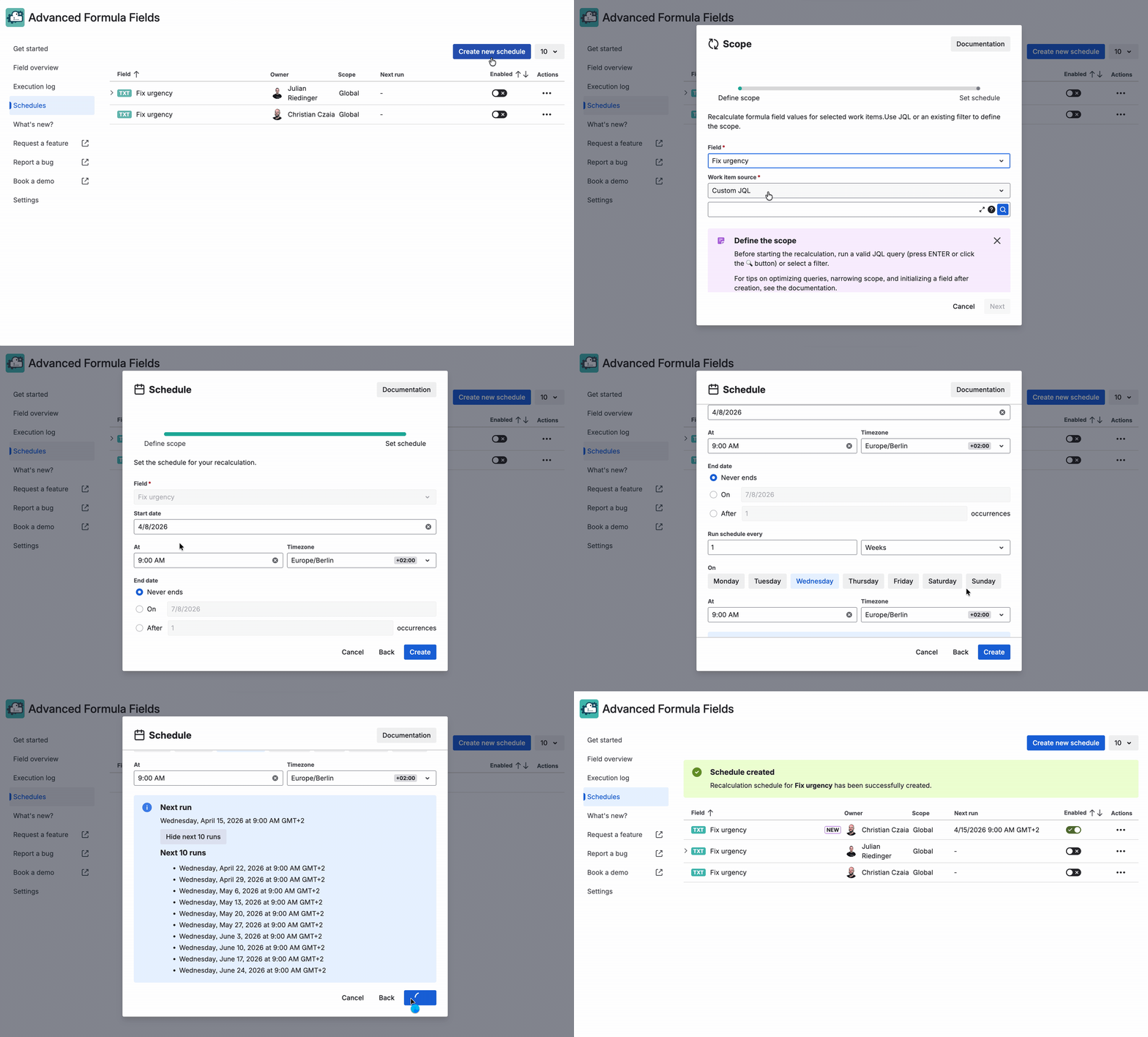
Define the scope
Select the field that will be recalculated in the Field dropdown.
You can limit which work items are recalculated using one of two data source options:
-
Custom JQL – Enter a JQL query manually
-
The input behaves like Jira’s native JQL search
-
Use the magnifying glass button to run your query
-
-
Filters – Click the work item source picker and then scroll or search for any publicly available filter.
Before you enter or select a query, you’ll see a performance note reminding you that large recalculations can impact system performance.
If the values fall within the recalculation limits, the Next button enables advancing to the next step.
Set schedule
Set the periodicity of the recalculation by setting an initial start date, an end date and a frequency for the recalculation.
-
Initial date - Earliest time at which the recalculation may be triggered
-
Date to define the earliest day of a given year
-
Time to set an specific hour and minute of the day
-
Timezone to distinguish between different local times
-
-
End date - Latest time at which the recalculation may be triggered
-
Never ends if the recalculation schedule is planned to run indefinitely
-
On to stop the recalculations on a day of a given year
-
After to set the number of times that the recalculation will be run before stopping
-
-
Frequency - How often the recalculation is run
-
Run recalculation every number of hours, days, weeks or months
-
Time and timezone selectable for days
-
Day of the week, time and timezone selectable for weeks
-
Day of the month, time and timezone selectable for day of the month
-
-
Scheduled runs can start at any minute within the planned hour, not just at the hour's start. For example, a recalculation set for 3:00 PM may begin at 3:29 PM or any minute between 3:00 PM and 3:59 PM. This is an Atlassian Forge limitation.
-
Next executions - List of the dates and times of the next recalculations based on the values set for the parameters of the initial date, end date and frequency sections
If several schedules are created for the same field and their recalculation is performed at the same time, the recalculation that started later is skipped regardless of the set of work items that it was going to update.
This could imply not updating some or all of the work items defined in the schedule that was skipped, depending on the work items updated by the first schedule.
Filter by spaces
By default, all schedules will be visible for Jira administrators. Filters can be applied to show only those specific to one or several spaces.
Recalculation schedule history
The last 5 executions of a scheduled recalculation will appear after expanding the corresponding schedule. The following information is available in the execution history table columns:
-
Execution date
-
Status
-
Configuration (JQL query)
-
Updated work items (count)
-
Duration
The Status column can hold 4 different statuses with the following meanings:
sucess - The scheduled recalculation was completed successfully.
In progress - The recalculation of some work items from the JQL query or filter is currently ongoing.
Error - Something unexpected happened and the recalculation could not be started or was interrupted.
skipped - Another recalculation was in place for the same field while the recalculation was started. The second recalculation is consequently skipped.
Actions
Some advanced actions can be performed on a schedule by clicking on the corresponding icons at the righthand side of a schedule.
Configure
It is possible to edit the scope and periodicity of the schedules after saving them for the first time. Note that the field they were created for is not editable after the creation.
Duplicate
After clicking Duplicate, a menu opens prefilled with the original schedule's configuration. You can edit any parameter there, including the field, JQL query or filter, and periodicity, before creating the new schedule.
Delete
Schedules can be deleted as well. Once a schedule is deleted, it is not possible to recover it.
Enable/Disable
Newly created schedules will be enabled by default. Simply use the toggle next to the schedule to disable them.