
The Expression generator is an AI-powered assistant that helps you create, understand, improve, and troubleshoot Jira Workflow Toolbox expressions using natural language.
Instead of writing expressions entirely from scratch, you can describe what you want to achieve, ask questions about expression logic, or request help with an existing expression. The assistant can then provide explanations, suggest expressions, or help you refine your expression.
The Expression generator is currently available as a preview feature.
Before you can use the feature on a page, it must first be enabled for that page. To request access, please contact our JWT Support.
During the preview phase, the Expression generator is only available for functions that have already been migrated to Forge, and on the Expression Parser test page.
Currently, this includes the following functions:
Use cases
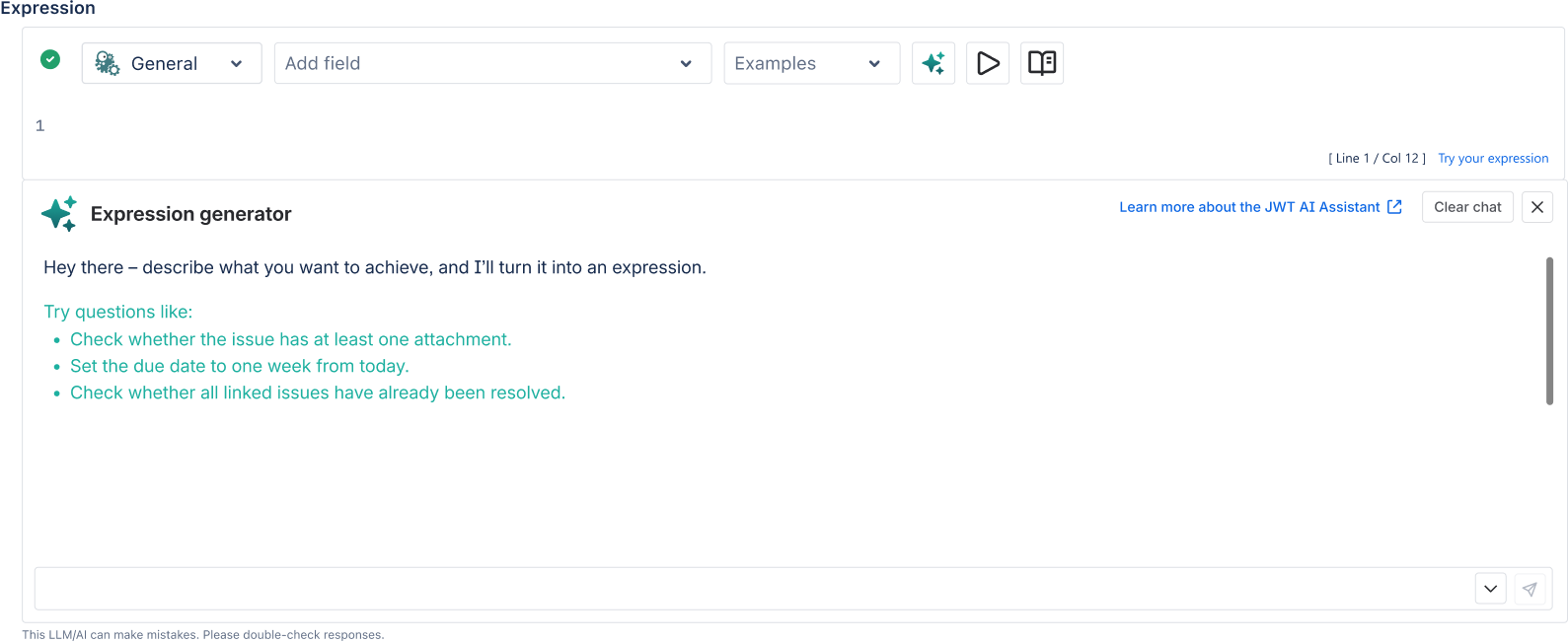
You can use the Expression generator to:
-
generate expressions based on a description of your requirements
-
explain existing expressions
-
ask questions about expression logic and syntax
For example, you can ask:
“Create an expression that checks whether the issue priority is High.”
“Explain what this expression does.”
“Why does this expression not return the expected result?”
Accessing the Expression generator
The Expression generator is available in the Expression Parser.
To open it:
-
Open the Expression Parser.
-
Click the AI Assistant button in the toolbar.

The Expression generator panel opens below the Expression Editor.
You can close the panel at any time by clicking the X button in the panel header.
Your conversation remains available as long as you stay on the page.
Supported expression modes
The Expression generator is available when the JWT expression editor is set to one of the following Parsing modes:
-
General
-
Logical
The Expression generator is not available in Jira Expression mode.
Getting started
When you open the Expression generator for the first time, you will see a welcome message and example prompts to help you get started.
Enter a description of what you want to achieve and submit your request.
The more specific your request is, the more helpful the result is likely to be.
For example:
Create an expression that checks whether the issue priority is High.
The Expression generator may respond with an explanation, a suggested expression, or both.
Chat experience
The conversation area displays both your messages and the responses from the Expression generator.
Responses may include:
-
Explanations of expression logic
-
Suggested expressions
-
A combination of explanation and suggested expression
You can continue the conversation to refine the result, ask follow-up questions, or request changes.
For example, after receiving an expression, you can ask:
Can you adjust this so it also checks whether the issue type is Bug?
Generated expressions
When the Expression generator creates an expression, the expression is displayed in a separate expression block.
This makes it easier to identify, copy, and reuse the generated expression.
Available actions
Generated expressions provide the following actions.
Copy expression
Use Copy Expression to copy the generated expression to your clipboard.
You can then paste it wherever you need it.
Send to Editor
Use Send to Editor to insert the generated expression directly into the Expression Editor.
This action is available when the Expression Editor is currently empty.
After the expression has been inserted, you can continue editing or testing it in the editor.
Generation modes
The Expression generator provides two generation modes.
Fast
The Fast mode returns results more quickly.
Use this mode when you want a quick suggestion or explanation.
Validated Results
The Validated Results mode performs additional validation before returning the generated expression.
This may take slightly longer, but it can help improve the accuracy of generated expressions.
Use this mode when correctness is especially important or when you want the generated expression to be checked more thoroughly before using it.
Provide feedback
You can provide feedback on generated results to help improve the Expression generator.
When you submit feedback, it is sent to the JWT development team for review. Feedback may include the generated response, your prompt, the selected feedback type, and any comments you provide. If you choose to provide contact information, it will also be included with the feedback.
Use the positive feedback option when the generated result was helpful, or the constructive feedback option when the result did not meet your expectations. You can optionally add comments to provide additional context.
Usage limits
The Expression generator may be subject to monthly usage limits.
If the monthly usage limit has been reached, the Expression generator will notify you. No further requests can be submitted until the limit is reset.
If you require a higher limit, please contact JWT Support to request an increase.
💡 Tips for better results
To get the most helpful results, try to:
-
describe your requirement as clearly as possible
-
include the expression and describe what you expect it to do, when asking the Expression generator to improve or troubleshoot an expression,
|
DO |
DON’T ⛔ |
|---|---|
|
Create an expression that checks whether the issue priority is High and the assignee is not empty. |
Create a validation expression. |
|
This expression should return true when the issue priority is High, but it does not work as expected. Can you help me fix it? |
Can you help me fix this? |
Always review generated expressions before using them in production workflows, especially for business-critical workflow logic.