
Who created or updated a workflow rule? Why did the execution of a workflow transition not work last time?
The Audit log (JWT) tracks the key events that may occur when implementing and executing workflow rules for JWT for Jira Cloud. Those events can be viewed and analyzed on a dedicated page to help you diagnose issues fast and in a central location.
To view the full audit log you need to be a Jira product administrator.
Location
Being logged in as a Jira administrator, you will find a short link to the audit log within the Apps section of the top menu.
Alternatively you can find the audit log in the central app configuration located in the Jira administration interface.
Events
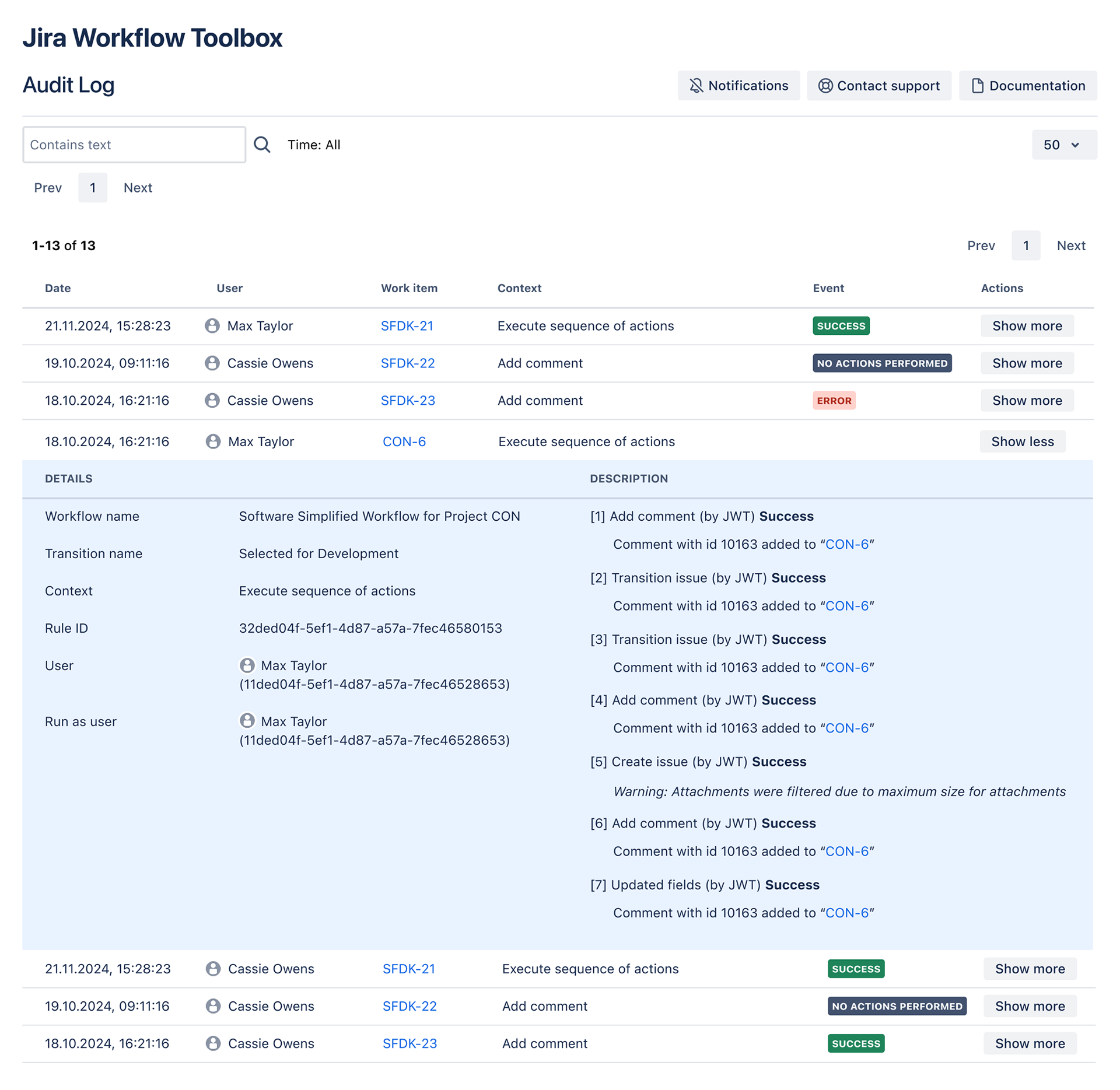
The Audit log (JWT) tracks the creation or update of a workflow rule configuration as well as its execution.
The log supports you by providing as much information as possible so that you understand what goes on behind the scenes. We distinguish between the following events:
|
Event |
Description |
|---|---|
|
Created |
A workflow rule has been created. |
|
UPDATED |
A workflow rule has been updated. |
|
SUCCESS |
A workflow rule has been executed successfully. |
|
NO ACTIONS PERFORMED |
The condition of a workflow rule was not fulfilled during execution. |
|
WARNING |
A workflow rule has been executed, but one or more actions were not completed as expected. |
|
ERROR |
The execution of a workflow rule was not successful. |
General event information
|
Column |
Description |
|---|---|
|
Date |
Timestamp of the event |
|
User |
The user who executed the event |
|
Issue |
The respective issue key (if applicable, e.g. when executing a post function during the issue transition) |
|
Context |
Name of the JWT workflow rule |
|
Event |
The event itself |
|
Actions |
Click on" Show more / less" or the entire log entry to expand or collapse the detail view. |
Detail view / Actions
Being Jira admins ourselves, we know that the more info you have while troubleshooting, the better, especially when drilling down an issue.
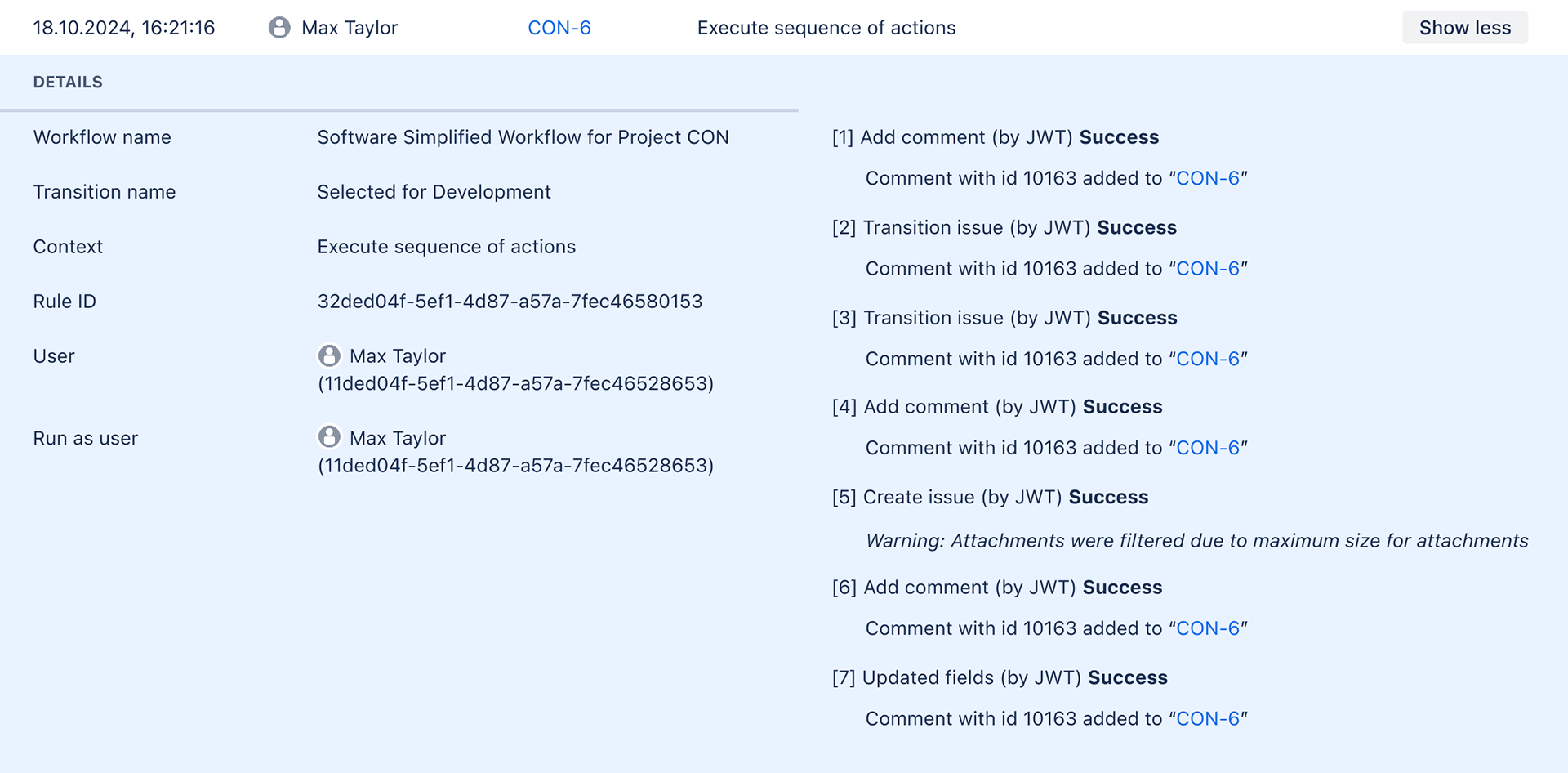
For this reason we have created a detail view for each event logged in the Audit log (JWT). The additional insights you will be able to get access to depend on the action performed.
Detailed event information
|
Details |
Description |
|---|---|
|
Workflow name |
Name of the workflow the rule belongs to (not available for created/updated events) |
|
Transition name |
Name of the transition where the workflow rule is defined (not available for created/updated events) |
|
Context |
Name of the respective workflow rule |
|
Rule ID |
The internal ID of the workflow rule |
|
User |
Name and Atlassian account ID of the user who triggered the event |
|
Run as user |
Name and Atlassian account ID of the user who actually executed the workflow rule (not available for created/updated events) |
|
Description |
Detailed information of the event, e.g. a Jira or JWT error message or the issue key which was created during the execution of a "Create issue" post function |
Search
The Audit log (JWT) comes with a flexible search engine. Browse through all available log entries by simply entering your term in the search field, and optionally narrowing down your search by providing a time period within you would like to search.
During the search, every column within the audit log is searched. If you like to look for all actions a specific user has performed, you have to enter the respective Atlassian account ID which is shown in the detail view.
-
Looking for all actions performed by a specific user? Simply enter the respective Atlassian account ID which is shown in the detail view
-
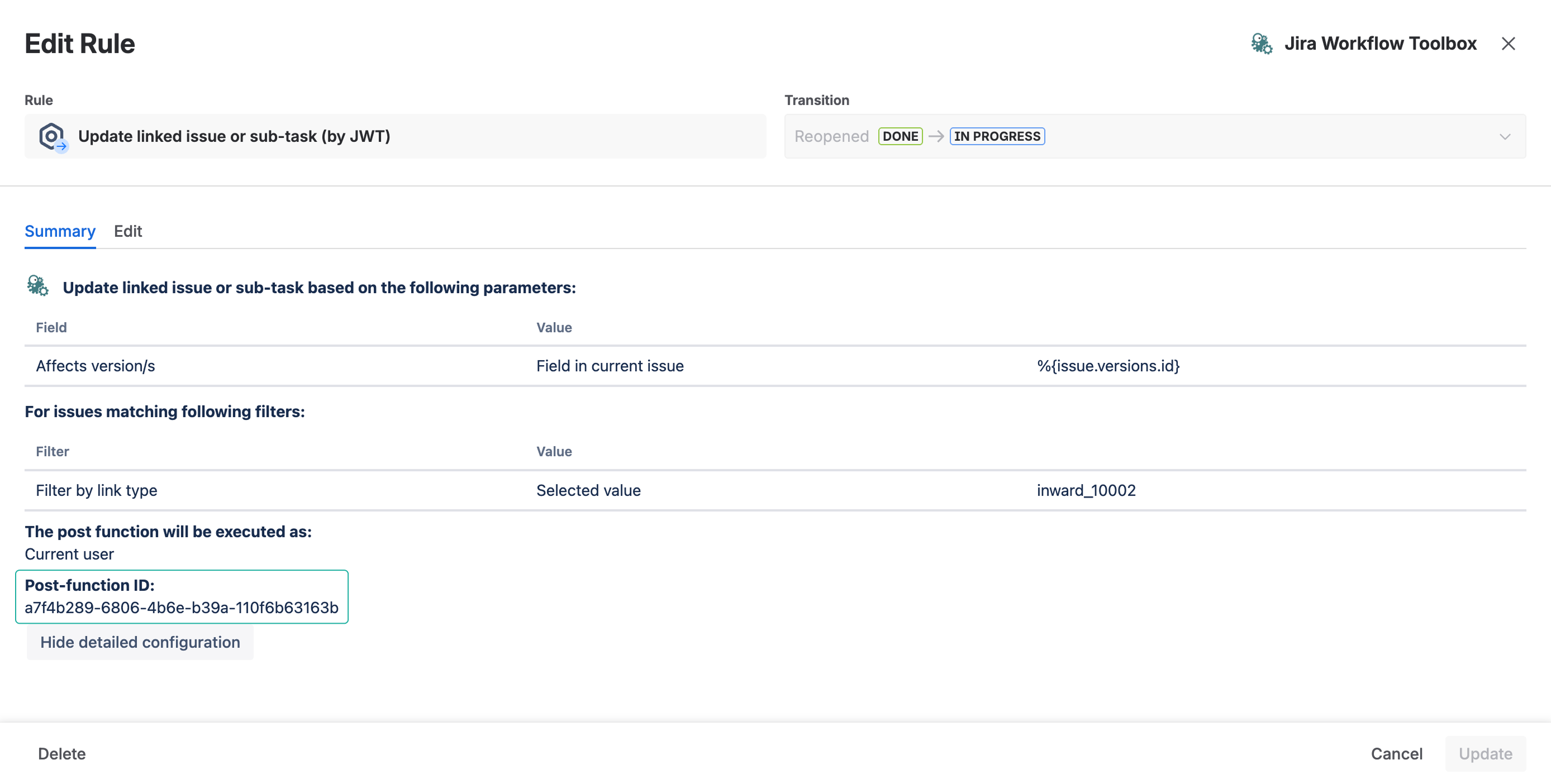
Not sure where to find a specific workflow rule ID? You can retrieve the information about the ID within the expanded workflow rule view in your workflow configuration.
Following the privacy requirements, we do not store clear text information about the users, but calculate the displayed information on-demand, requesting the Jira application. This is why a user ID can be used in the search.
Limitations
For JWT conditions and validators, no "success" event is logged due to the nature of their execution outside of our JWT.
The audit log cannot distinguish between drafts and active workflows, so you cannot tell whether a created or updated workflow rule is not yet active.
No "deleted" event can be shown, i.e. if a workflow rule is deleted, Jira does not pass on that information to JWT.
All log entries older than 28 days are being continuously deleted.
Audit Log Notifications
Being logged in as a Jira administrator, you can access Notifications directly within the Audit Log of Jira Workflow Toolbox.
Navigate to:
Apps → Jira Workflow Toolbox → Audit Log → Notifications
Audit Log Notifications allow administrators to receive summary emails about workflow rule activity that may require attention.
Notifications can be triggered by workflow executions resulting in:
-
Errors
-
Warnings
-
No actions performed
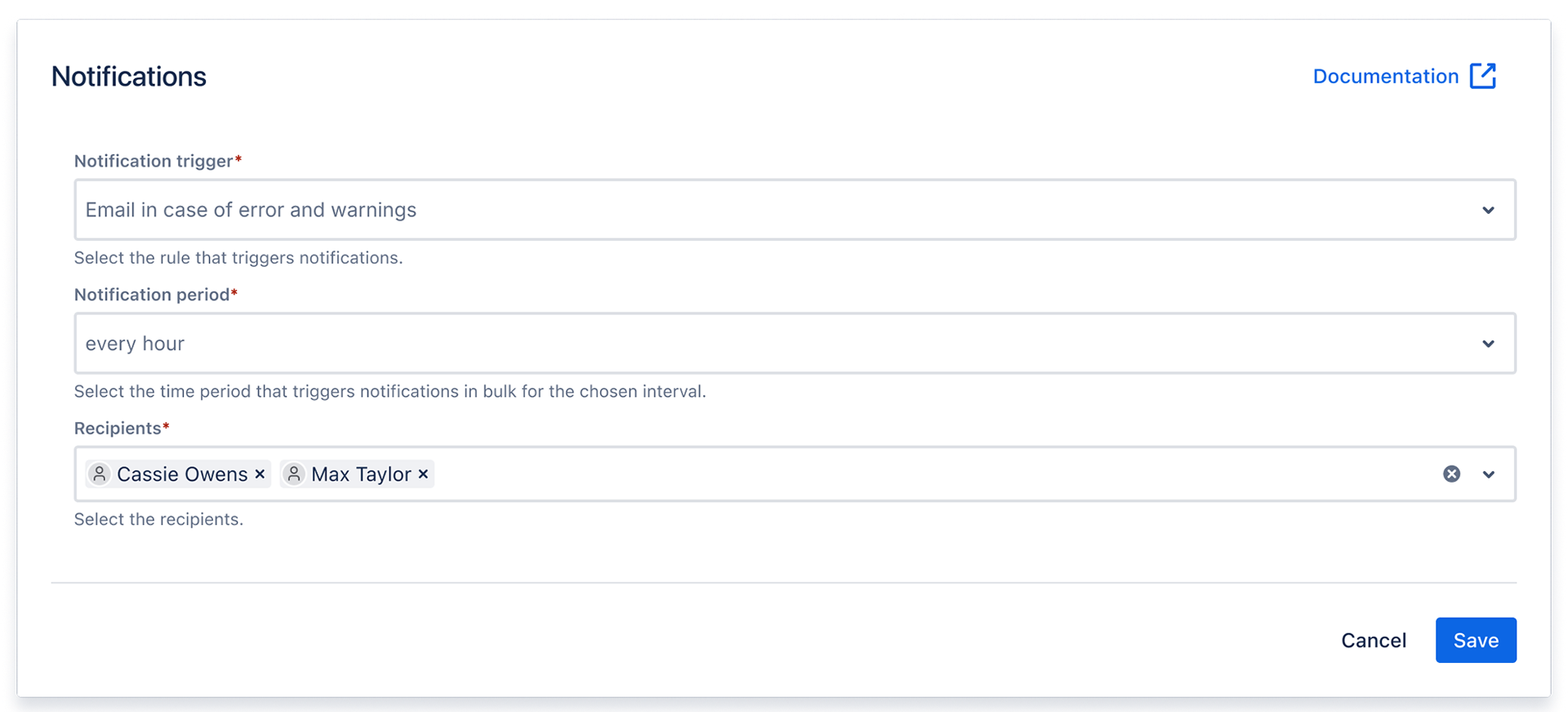
Notification Triggers
Detailed event information
|
Trigger |
Description |
|---|---|
|
No notification |
Disables all email notifications. |
|
Email in case of an error |
Sends notifications only when a workflow rule fails. |
|
Email in case of error and warnings |
Sends notifications when a workflow rule fails or generates a warning. |
|
Email in case of no actions performed, warning and error |
Sends notifications for errors, warnings and cases where a workflow rule did not perform any action. |
Notification Period
Detailed event information
|
Period |
Description |
|---|---|
|
Every hour |
Sends a summary email at the top of each hour. |
|
Daily |
Sends one summary email per day with the previous day’s activity depending upon when it’s configured. |
Notifications are grouped into a single email per period.
Recipients
Notifications can be sent to one or more Jira users.
Requirements:
-
At least one active user must be selected.
-
Deactivated users cannot receive notifications.
-
Only Jira administrators can modify notification settings.
Email Content
Notification emails contain grouped entries based on event type:
Detailed event information
|
Period |
Description |
|---|---|
|
Errors |
Workflow executions that failed. |
|
Warnings |
Executions completed with warnings. |
|
No actions performed |
Executions where conditions were not fulfilled. |
Each entry includes a timestamp, context and a direct link to the audit log.
Behavior
-
Emails are sent only if matching events exist.
-
One consolidated email is generated per notification period.
Limitations
-
External recipients are not supported.
-
No email is sent when no matching events occur during the period.