
The conditional color formatting feature allows you to visually highlight formula results using icons, background colors, and text colors based on simple formatting rules.
The rules are evaluated from top to bottom and the styling defined in the first matching rule is applied.
How to configure conditional color formatting
-
Open the Field overview and select the formula field you want to edit, or create a new formula field.
-
Go to the Configure step.
-
Find the Color formatting section below the formula editor.
-
Add one or more rules to define how values should be displayed.
-
Use the preview area to verify the result.
-
Save the field configuration.
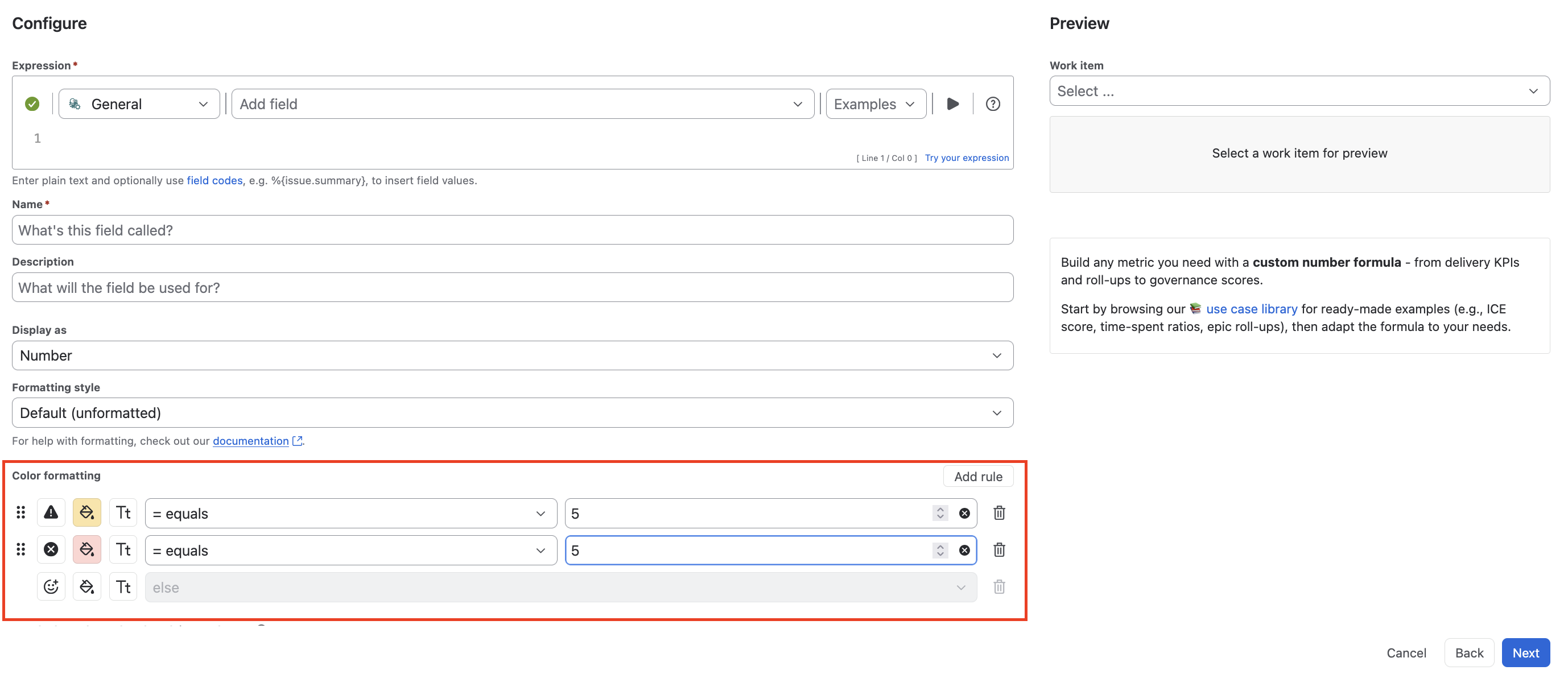
Rule structure
Each formatting rule consists of a visual style and a condition.
|
Element |
Description |
|---|---|
|
Icon |
Selects an icon to show before the field value. If the field is empty, no icon is shown. |
|
Background color |
Chooses the background color for the displayed value. |
|
Text color |
Chooses the text color for the displayed value. |
|
Operator |
Defines how the formula result is compared to the rule value. |
|
Comparison value |
Defines the value that is checked against the formula result. |
Available operators
The available operators depend on the formula field type.
|
Formula result type |
Supported operators |
|---|---|
|
Text formula field |
contains, does not contain, equals, does not equal, starts with, ends with |
|
Number formula field |
equals, does not equal, greater than, less than, greater than or equal, less than or equal |
Rule order and evaluation
Rules are checked in a top-to-bottom sequence. When the first rule is matched, its formatting is applied, and the remaining rules are ignored.
-
Add a new rule to create another condition.
-
Drag and drop rules to change their priority.
The default rule works as the fallback formatting when no other rule matches.
Default rule
The else (default) rule defines how the value is displayed when none of the conditional rules apply.
-
It always stays at the bottom of the rule list.
-
It cannot be reordered.
-
It cannot be deleted.
-
It can still be configured with its own icon, background color, and text color.
This ensures every formula result has a defined visual output, even when no condition is matched.
Validation and behavior
-
Each conditional rule requires a comparison value before the field can be saved.
-
For numeric formulas, the comparison value must be a valid number.
-
If the formula result is empty or does not match any configured rule, the default rule is used.
-
If formula output cannot be resolved for formatting purposes, the fallback behavior is the default rule.
Incomplete or invalid rules may prevent saving until all required values are entered correctly.