
Frequently asked questions about configurations, capabilities and functionalities.
General
Post functions
Conditions and validators
Changes to text field (multi-line) in the Jira Cloud "New issue transition experience"
With the introduction of structural updates in Jira Cloud, all instances are affected, regardless of whether the "New issue transition experience" is enabled. Some adjustments for workflows involving the Text field (multi-line) custom field (also referred to as "Paragraph (supports rich text)" field) are required. Below are answers to frequently asked questions to help you navigate these changes smoothly.
1. Why do I need to update my conditions and validators?
Jira Cloud's New issue transition experience introduces structural updates to handling Text field (multi-line) / Paragraph (supports rich text) custom fields. These changes require adjustments to conditions and validators to ensure workflows continue functioning correctly.
2. What changes are needed for the "Compare two values" condition/validator?
If your workflow uses the Compare two values condition or validator, follow these steps:
-
Open the condition or validator configuration.
-
Save it again without making changes.
This refresh ensures compatibility with the new handling of Text field (multi-line) / Paragraph (supports rich text) custom fields.
3. What should I do for the "Fields Required or Changed" condition/validator?
If you use the Fields required or changed condition or validator for Text field (multi-line) / Paragraph (supports rich text) custom fields, follow these steps:
-
Delete the existing Text field (multi-line) / Paragraph (supports rich text) entries.
-
Add them again.
-
Save the condition or validator.
This ensures that the system correctly recognizes the updated field format.
4. How do I update the "Jira Expression" condition/validator?
For workflows using the Jira Expression condition or validator with Text field (multi-line) / Paragraph (supports rich text) custom fields:
-
Open the configuration.
-
Re-add the field code using the field selection option.
-
Save the changes.
This update ensures that the expression correctly references the field under the new issue transition experience. See examples below.
On the Jira expression validator documentation page, the different behaviors of the fields for the Create Transition and all other transitions are described.
5. Why do I need to change the Active Renderer for Text fields (Multi-line)?
To ensure that conditions and validators work correctly with Text field (multi-line) / Paragraph (supports rich text) custom fields, it is necessary to set the Active Renderer to Wiki Style Renderer. Without this change, conditions and validators may not function properly.
-
Navigate to Field configurations in Jira settings (Settings → Issues → Fields → Field configurations)
-
Configure the necessary field configuration.
-
Locate the Text field (multi-line) / Paragraph (supports rich text) custom field and use the Renderers option.
-
Change the renderer to Wiki Style Renderer.
-
Save the changes.
How can I check if the Wiki Style Renderer is enabled?
If the Wiki Style Renderer is correctly set, a formatting toolbar will appear above the text field when editing an issue.
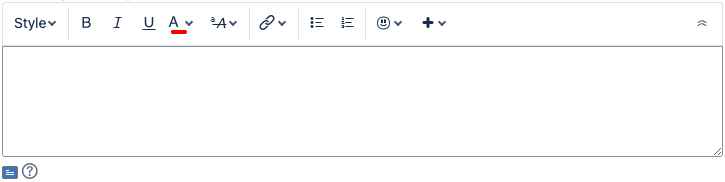
If the taskbar is missing, the Default Text Renderer is set, and you should verify your field configuration settings.
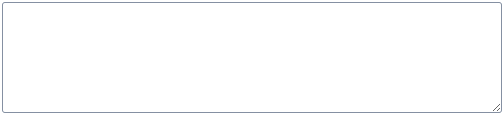
This update ensures that Text field (multi-line) / Paragraph (supports rich text) custom fields support formatting and display correctly.
6. Will these updates impact existing issues?
No, these updates only affect workflow conditions and validators. Existing issues remain unchanged, but workflow transitions relying on affected conditions or validators may fail until updated accordingly.
7. What happens if I don’t update these configurations?
Transitions involving affected conditions or validators may not function as expected without these updates. Jira may fail to process the workflow steps properly, potentially causing issues for users moving issues through workflows.
8. Is this a one-time update?
Once you make these adjustments, your workflows will be fully compatible with the new issue transition experience in Jira Cloud.
Examples
Once you replace the fields using the built-in field picker the returned expression might seem a little complex than needed. This is because we have updated the field picker to make it work for both the old and new experience for the time being.
Limit number of characters
Before Atlassian's new transition experience:
Old transition experience
issue?.customfield_12345.length <= 1000
After Atlassian's new transition experience:
New transition experience
((typeof issue?.customfield_12345 == "Map") ? new RichText(issue?.customfield_12345).plainText : issue?.customfield_12345).length <= 1000
Make field required based on specific select list value
Before Atlassian's new transition experience:
Old transition experience
issue?.customfield_12543?.map(c => c.value).includes("Specific value") ? issue?.customfield_12345 != null : true
After Atlassian's new transition experience:
New transition experience
let customFieldText = ((typeof issue?.customfield_12345 == "Map") ? new RichText(issue?.customfield_12345).plainText : issue?.customfield_12345);

issue?.customfield_12543 != null ? (issue?.customfield_12543?.map(e => e.value).includes("Specific value") ? customFieldText != null && customFieldText.length > 0 : true) : true
Migration log
Jira Workflow Toolbox app user