
Use case
In this use case JWT is going to automatically log work as soon as an issue enters and leaves a specific status.
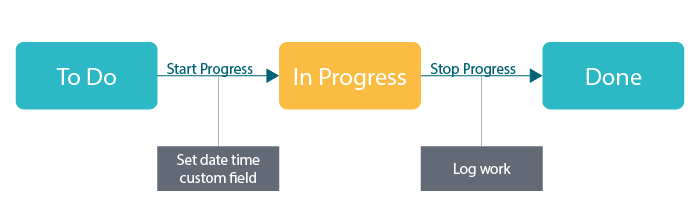
As soon as a user executes the Start Progress transition, we're starting our work. As soon as the user executes the Stop Progress transition, we stop our work and automatically log the time we worked on the issue.
Prerequisites
In order to make this use case work, we need to create one custom fields to store the time we entered the specific status.
Set up the custom field
Create a date time picker custom field
Name: Work Start Time
Go to the Field configuration and set the visibility of the created custom field to hidden.
⚒️ Configuration
Set up the Start Progress transition
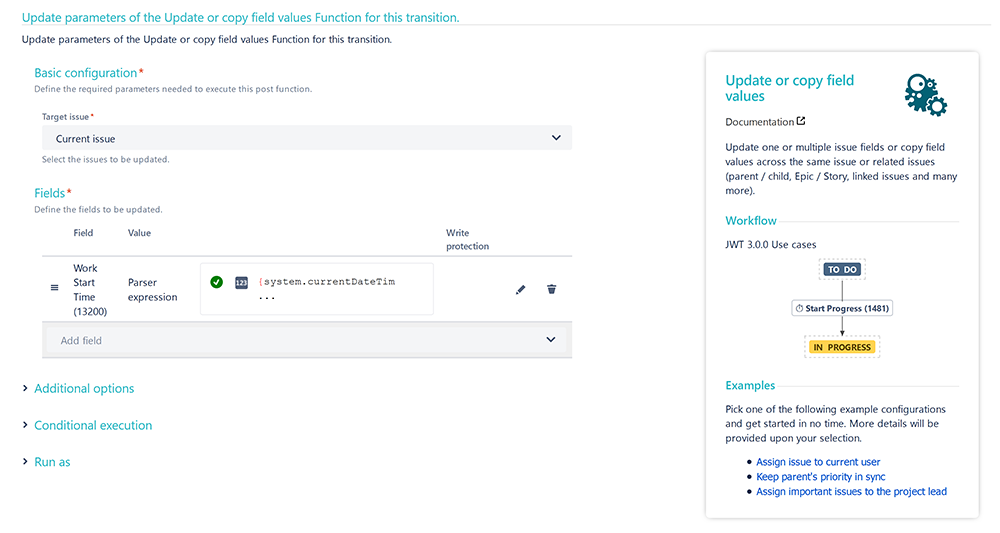
Add the Update or copy field values post function to the Start Progress transition.
Target issue
Choose Current issue
Fields
Field
Choose Work Start Time
Value
Choose Set field value manually
Expression
Enter the following expression:
{system.currentDateTime}
Set up the Stop Progress transition
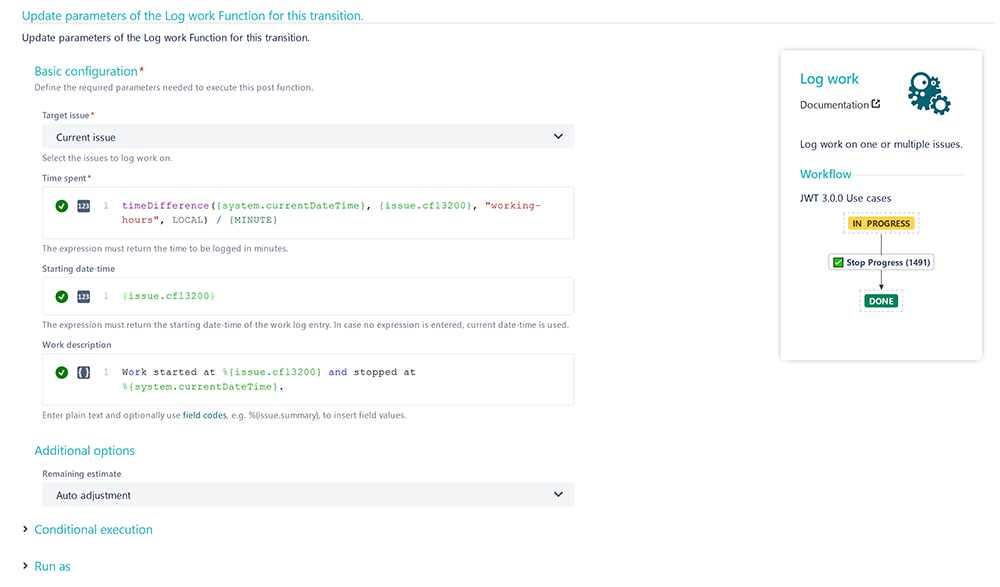
Add the Log work post function to the Stop Progress transition.
Target issue
Choose Current issue
Time spent
Enter the following expression:
({system.currentDateTime} - {issue.cfnnnnn}) / {MINUTE}
cfnnnnn is the field code for the Work Start Time custom field we've previously created.
Update the field code to the corresponding field code on your instance!
Starting date-time
Enter the following expression:
{issue.cfnnnnn}
cfnnnnn is the field code for the Work Start Time custom field we've previously created.
Update the field code to the corresponding field code on your instance!
Work description
You can enter a comment like this:
Work started at %{issue.cfnnnnn} and stopped at %{system.currentDateTime}.
cfnnnnn is the field code for the Work Start Time custom field we've previously created.
Update the field code to the corresponding field code on your instance!
Additional options
Remaining estimate
Choose Auto adjustment
Alternative implementation
In the current implementation, the time between entering and leaving the In Progress status is being tracked as working time. So also non-working time will be logged (e.g. from 5pm to 8am the other day) even though nobody might be working on the ticket.
For this, a JWT calendar could be used. This way only the actual work time will be considered.
Create a new calendar
Head over to the Jira Administration → Manage apps → Jira Workflow Toolbox → Calendars.
Hit Add calendar in the upper right corner.
Name
Enter an appropriate name. For this use case we're going to use the name working-hours.
Specification
Enter the following schedule:
MON-FRI{
   08:00-17:00;
}
Update the Log work configuration from above
Once the calendar is created, we have to update the configuration of the Log Work post function from above.
We only need to update the Time spent expression.
Time spent
Enter the following expression:
timeDifference({system.currentDateTime}, {issue.cfnnnnn}, "working-hours", LOCAL) / {MINUTE}
cfnnnnn is the field code for the Work Start Time custom field we've previously created.
Update the field code to the corresponding field code on your instance!
For this expression the timeDifference() function was used.
📷 Screenshots
📚 Related use cases
| Use case | Workflow function | Parser functions |
|---|---|---|
| Log absence time on another issue | ||
| Add percentaged profit margin when closing issue | ||
| Automatically log work spent in a specific status |