
JWT provides a huge set of functionalities to read and manipulate data from Jira issues, users, projects, and more.
The "expressions" that are being evaluated by the expression parser are composed and tested in the JWT expression editor.
Depending on what you are doing, you will be presented with different options and functionalities, but in the end it always comes down to writing an expression, which will be evaluated on runtime.
What is an expression?
Expressions are a fundamental concept within Jira Workflow Toolbox: every input into the JWT expression editor is considered an expression and will be interpreted by the JWT expression parser against the selected parsing mode. They are used in workflow functions, automation rules, and calculated fields.
Expressions range from simple text, e.g. Hello world!, over mathematical calculation, e.g. 3 + 4, to the extensive usage of expression parser functions, and beyond.
Basic text mode being the simplest one among the parsing modes allows to write free text and insert field codes. The other parsing modes support the usage of operators and expression parser functions.
Main elements
The editor
.png?cb=63cc01f5d0a20385c59e6f1de2ca5560)
Syntax check
-
As you type in your expression the syntax check button is synchronized with your expression and you can see if your expression is valid or not.
-
Click on the syntax check button to review your expression.
|
Output |
Description |
|---|---|
|
✅ |
Valid expression: The parser expression entered is valid. |
|
❌ |
Parsing error: The parser expression entered is not valid and you can do the following to fix the issue:
|
Select a parsing mode
A parsing mode determines how the JWT expression parser interprets an expression.
The available parsing modes depend on the context you are using the expression in. As an example, only the Logical mode is available if you configure a conditional execution in a workflow post function or that you can only use the Numeric mode if you want to set a number field using a parser expression.
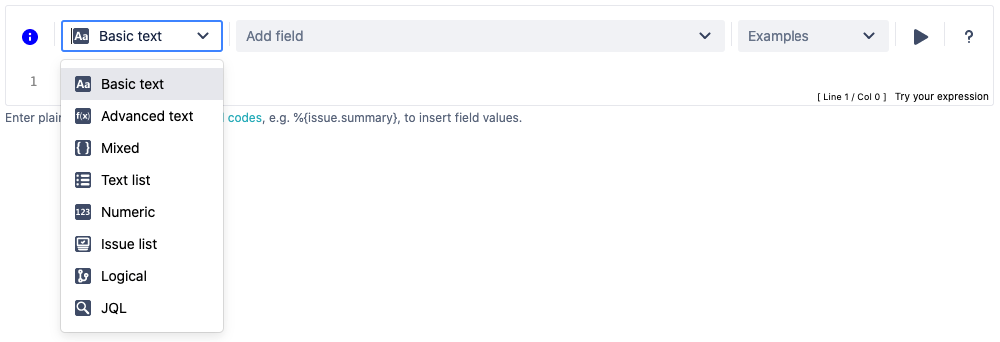
Read more about all available parsing modes.
Field code picker
The field code picker is a dynamic select list that lists all available field codes. The fields, or their values, will be be replaced with actual values at runtime .
The available fields and their notation depend on the selected Parsing mode. Depending on the parsing mode, numeric fields (including dates) can be either inserted as text or a number.
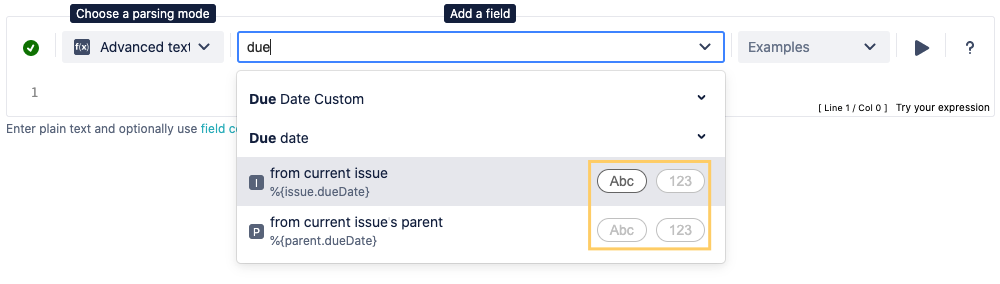
Built-in examples

Need inspiration? Each parsing mode comes with built-in example expressions. If you choose an example from the dropdown menu, the expression will be automatically added to the editing area of the expression editor.
Run button

By clicking the Run button, a test expression panel is displayed below your expression. To test your expression, do the following:
-
Select an issue that you want to test your expression with (as the current issue)
-
Click Run again
Handbook
Help is just one click away. If you click on the Help button, an in-line handbook will pop up, which provides information about almost any feature of JWT, from field codes, to Parsing modes, and JWT expression parser functions.
Expression area
This is where the magic happens. Enter a plain text, Field codes, and JWT expression parser functions.
Which options you will actually have, depend on the selected Parsing mode.
Head over to the use case library to see what's possible with the power of the JWT expression editor.
Auto-complete
Tech tip: Auto-complete
The expression editor comes with a built-in auto-complete feature.
Simply press <CTRL> + <space> to get a searchable list of JWT expression parser functions and available field codes.

Highlighting makes it easy to recognize essential parts of the expression.