
Before publishing your workflow, we strongly recommend testing your expressions. This helps ensure your configuration behaves as expected.
You have two convenient ways to test your expressions in JWT:
-
Expression test page
-
Built-in expression preview in the JWT expression editor
Both serve the same purpose: previewing the result of your expression in a safe environment before going live. Testing your expressions before publishing helps avoid unnecessary issues and gives you confidence that your automation will behave exactly as intended.
Expression Test Page
For more advanced testing, head to:
Jira Administration → Manage apps → Jira Workflow Toolbox → Expression test page
Here you can:
-
Run expressions in a sandboxed environment
-
Test against any issue that are visible to you
-
Use all the different parsing modes (e.g., logical expressions, Jira expressions)
-
Select a different user for test execution using the "Run as" field
This is especially useful if your expression behavior depends on user permissions or roles.
Built-in Expression Preview
When editing a JWT workflow function, you can test your expression directly in the JWT expression editor. This built-in preview instantly shows you the result based on the current issue context, making it ideal for quick validation without leaving your configuration screen.
However, this method does not support changing the execution user, it always runs the expression as the currently logged-in user.
Five steps to test your expression
-
Type in your expression or select one of the built-in examples.
The Expression test page does not support all field codes. Field codes for e.g. Temporary fields, are not supported.
-
Click on the Run button (play button)
-
Select an issue you want to test your expression with.
-
Confirm your selection by clicking on Run
-
Check the resulting output or analyze the errors.
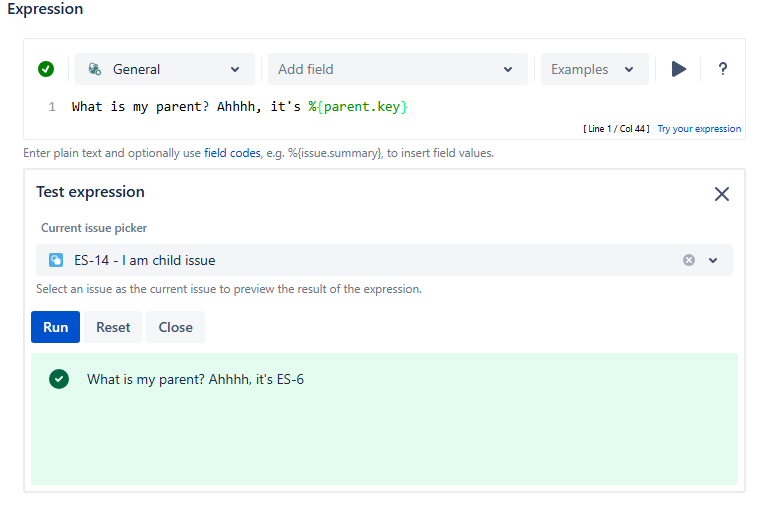
Syntax check
Before running your expression against a certain issue, it's recommended to check if the syntax is correct.
The syntax check button shows if the current expression in the input field is syntactically correct 

The run button

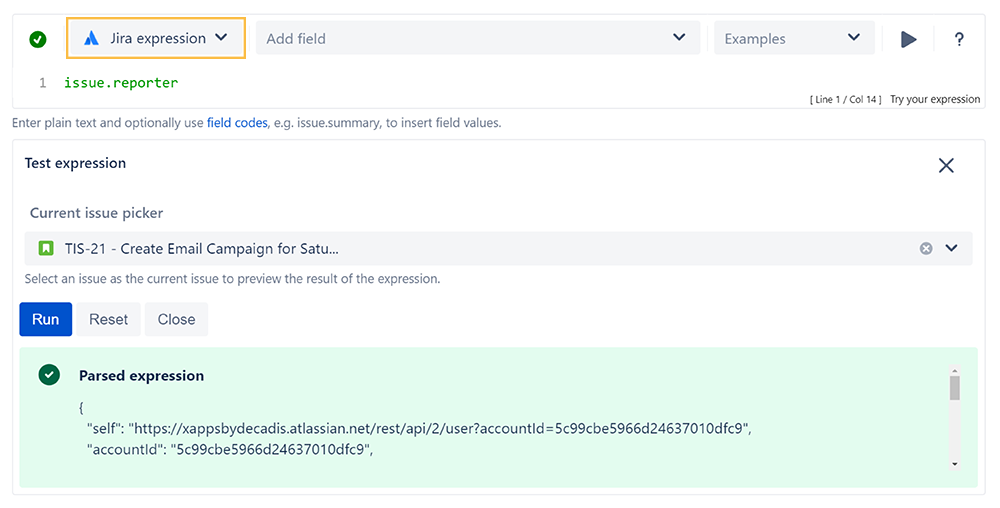
By clicking on the Run button, a test expression panel is displayed under your expression. To test your expression, do the following:
-
Select an issue that you want to test your expression with (as the current issue).
-
Click on Run
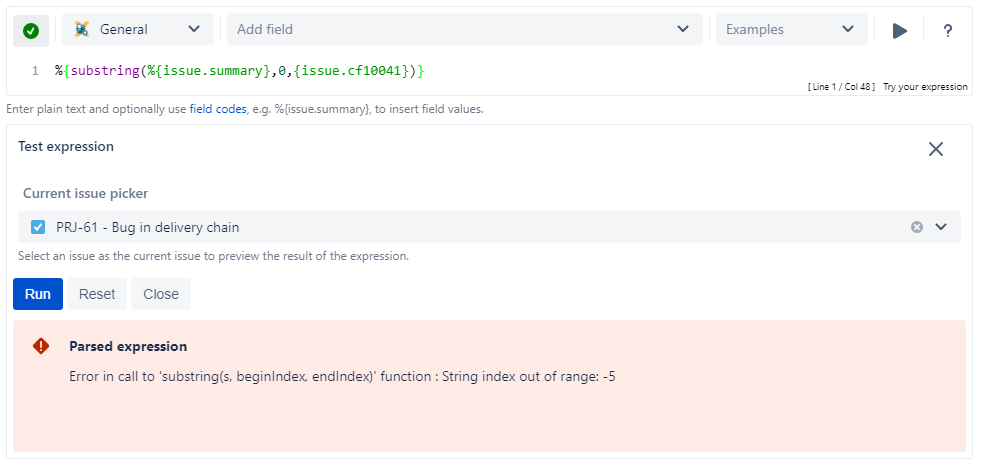
Error message
Even if the syntax of the expression is correct, it may happen that the expression result is erroneous, e.g. when fields are empty.
In the example below the value of the custom number field "cf10041" is returning a value which is not valid parameter for the function substring().
Output of different data types
Depending on the Parsing modes and the expression itself, different Data types are being returned as a result of the expression.
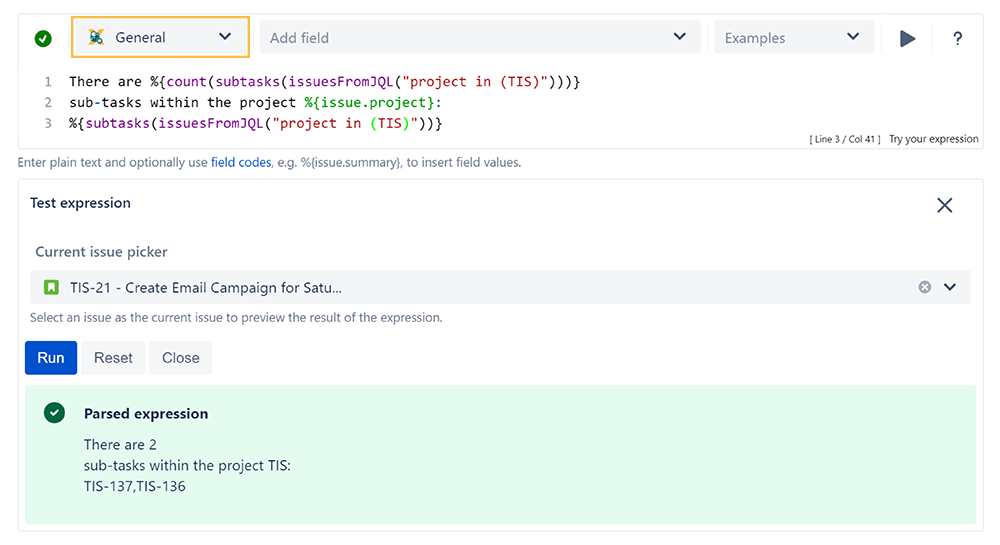
General mode
Expressions written in the General mode will return texts.
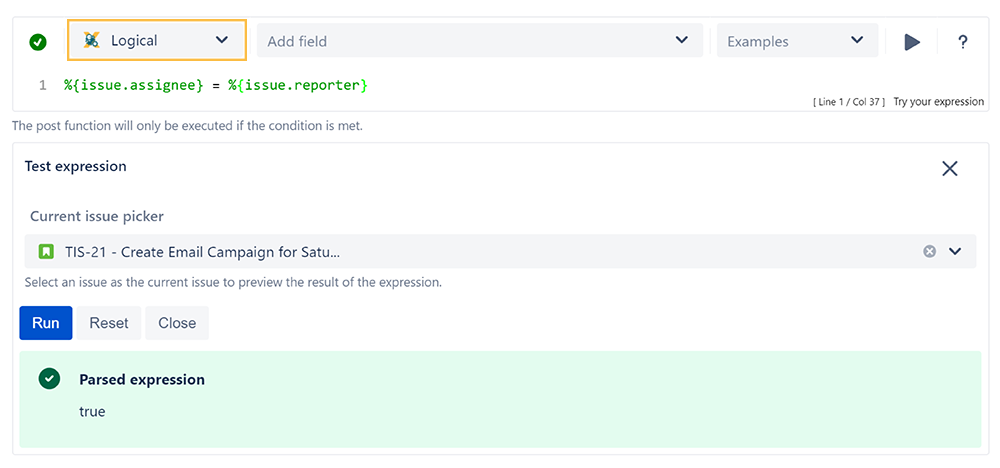
Logical mode
Expressions written in the Logical mode will return a boolean value of true or false.
Jira expression mode
Expressions written in the Jira expression mode will return objects based on Data types (Jira expressions).
Testing a complex expression
When composing complex expressions, e.g. in Logical mode or the Jira expression mode, where you compare values we recommended to:
-
Create individual expressions for the operands of the comparison.
-
Test each expression separately within the selected Parsing modes.
-
Merge the individual expressions and test the complete expression