
Creating pages
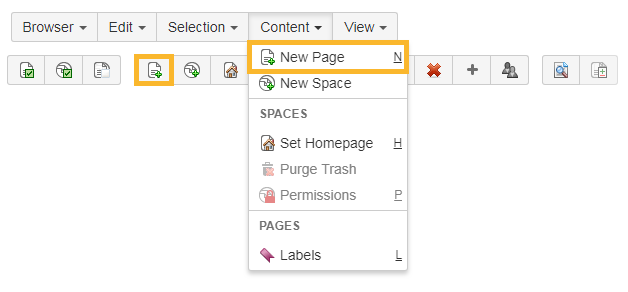
Creating a new page can be done by selecting the space or a page and then by choosing one of the following options:
-
Clicking on c ontent and n ew page
-
Clicking the n ew page button
-
Pressing n
The page will appear in the Space Admin Browser tree.
If a page with the automatically generated title "New page" already exists in the destination space, creation will fail. First, rename the old page with the name " New page" into something more meaningful.
Copying pages
There are several ways to copy pages in Space Admin:
-
Copying a single page
-
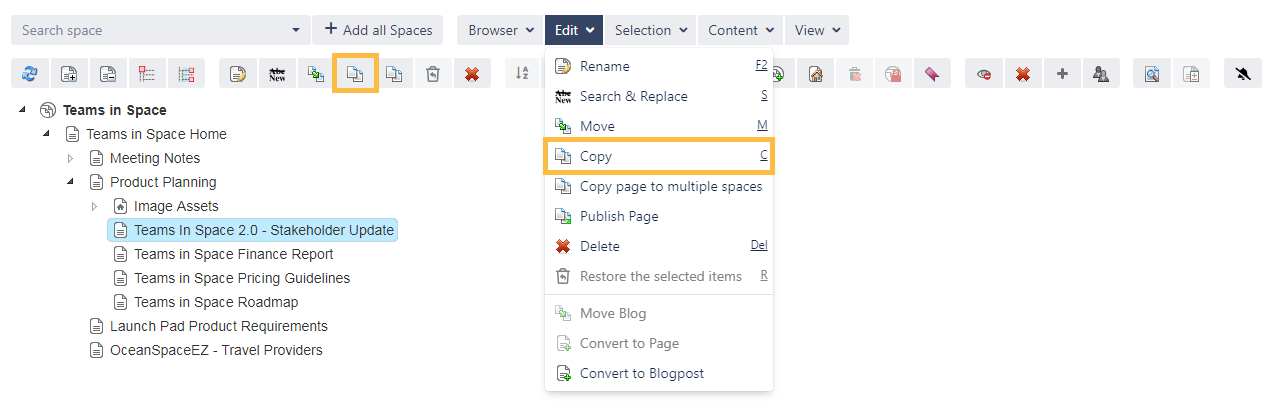
To copy a single page, select the page in your Space Admin Browser and then by choosing one of the following options:
-
Click on e dit and c opy
-
Click copy button
-
Press c
-
Use the context menu
-
-
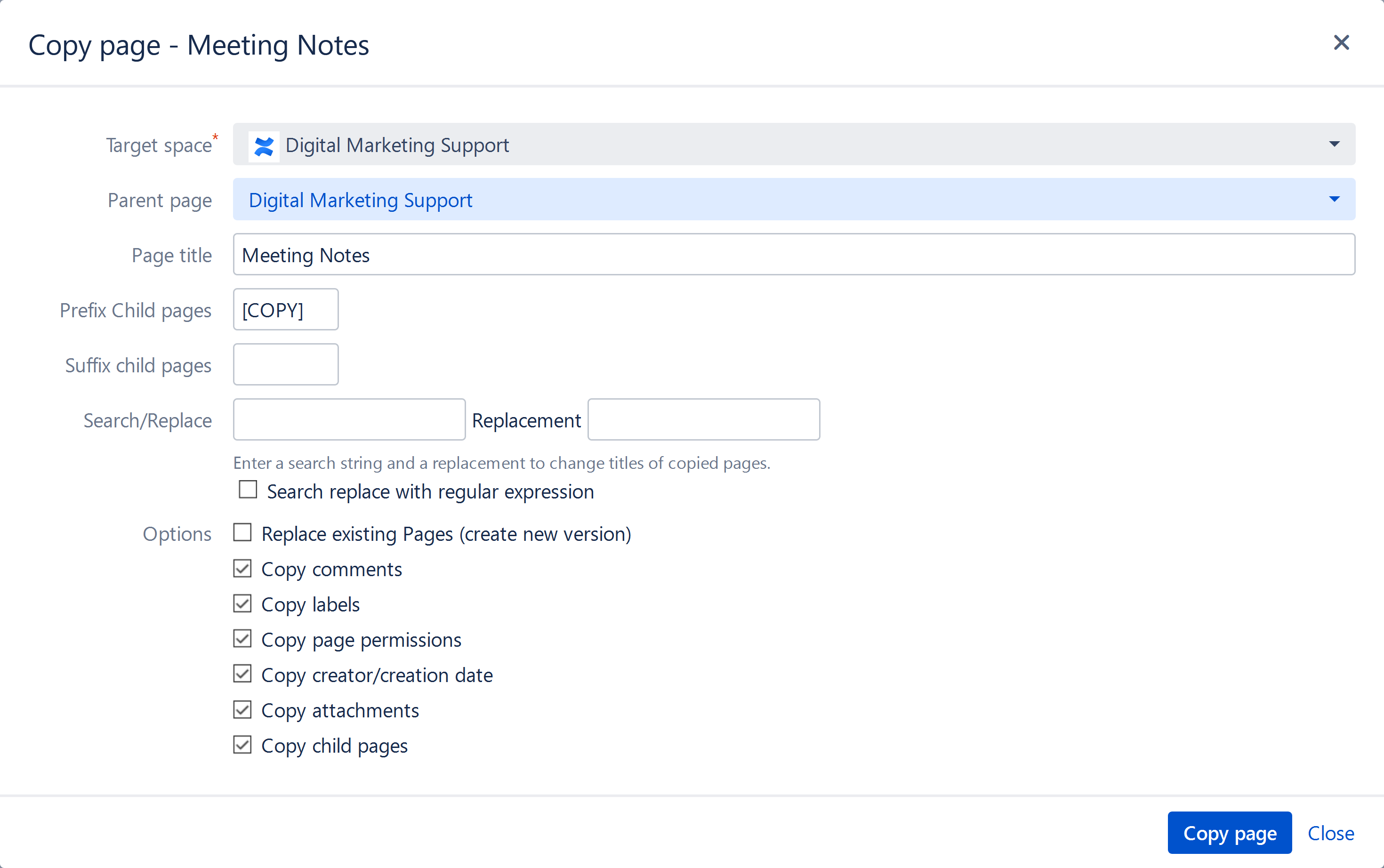
In the next window, a destination space and an optional parent page have to be selected. Some additional options for the copy can be disabled/enabled.
The page title will have then this structure:
prefix + actual name + suffix.
-
The copied page will be listed in the Space Admin browser after the copy process is completed.
A new version can only be created in a different space.
-
-
Copying multiple pages
-
Copying several pages with some of their sub-pages is possible by selecting the pages with Ctrl+left click and then by one of the following options:
-
Click on e dit and c opy
-
Click on the copy button
-
Press c
-
Use the context menu
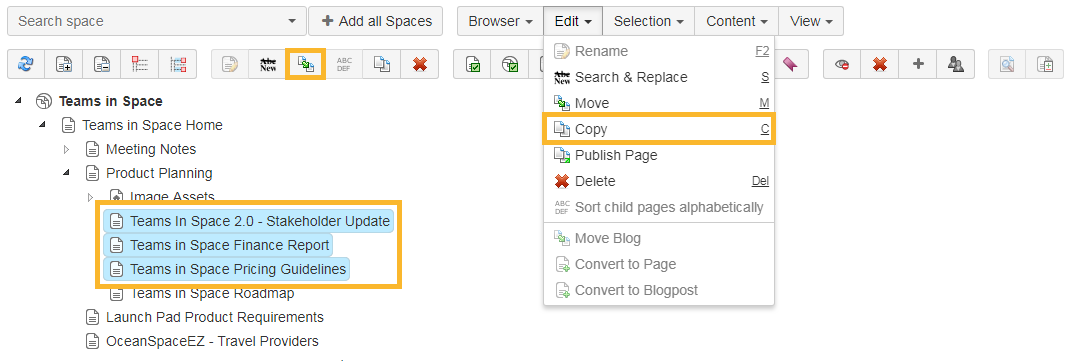
The next window offers the same options as those available when copying only one page.
-
-
-
Copying a page with Ctrl
-
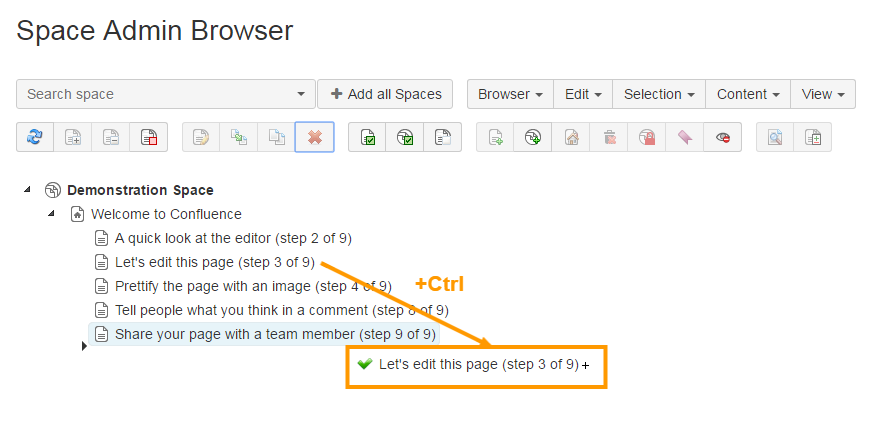
Copy a page by pressing Ctrl + left click on a page and then drag and drop to the desired location.
ℹ️ The page will be copied with default parameters and a copy of all its child pages.An icon will show if copying is possible.
-
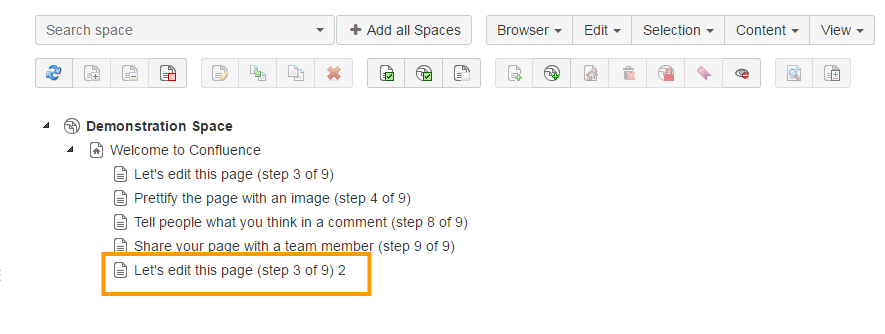
But If there is already a page with the same name on the destination page, then the newly copied page will be renamed and appended a consecutive number.
-
-
Copying a page to multiple spaces
-
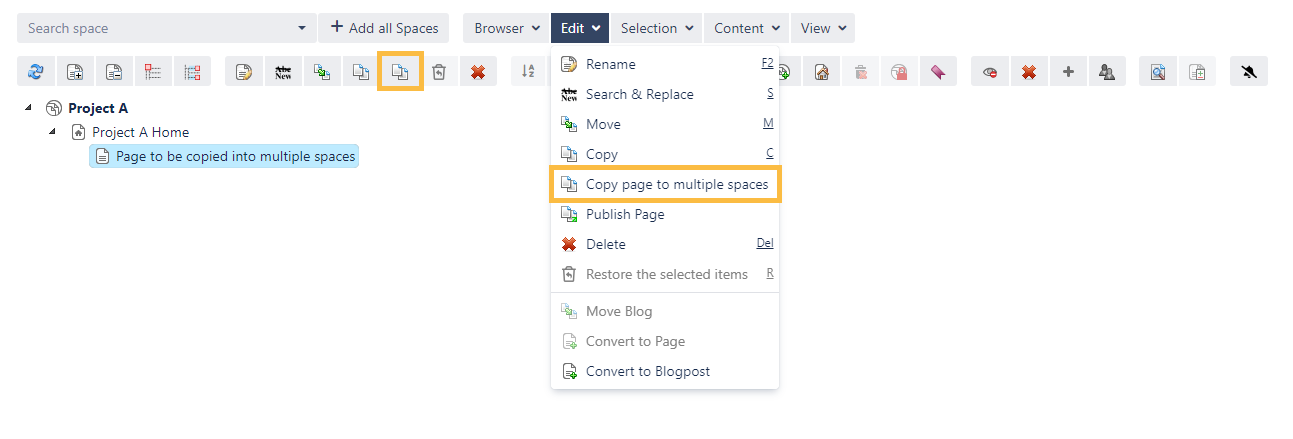
To copy a page to multiple spaces, select a page in the Space Admin browser and then by choosing one of the following options:
-
Click on e dit and then c opy page to multiple spaces
-
Click the c opy page to multiple spaces button next to the c opy button
First the page is selected from the desired source space:
-
-
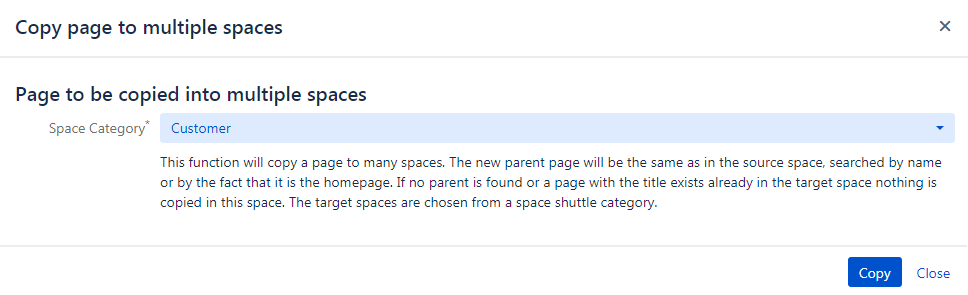
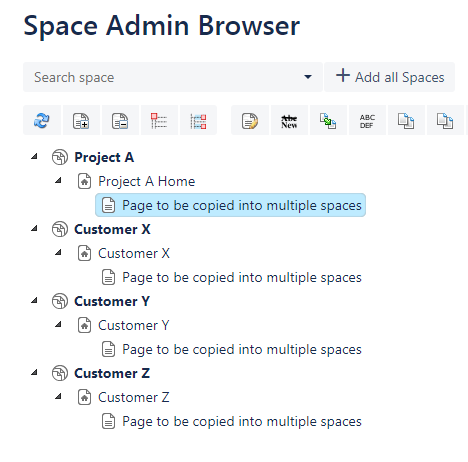
The spaces are selected by choosing a category previously configured in the Space Shuttle (in our case Customer , which contains 3 spaces).
-
Then, the result is as expected, all the spaces in the Customer category now contain the copied page.
-
Deleting pages
Using Space Admin for Confluence, you can delete single or multiple pages including child pages.
To delete a single page select the page in the Space Admin Browser tree and then by choosing one of the following options:
-
Click on e dit and d elete or
-
Click on the delete button or
-
Press Del
-
Use the context menu
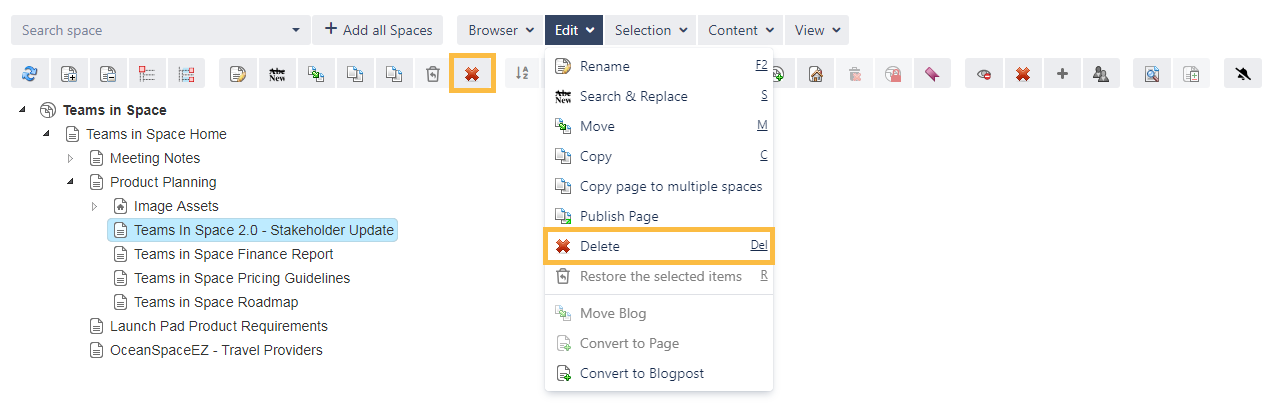
A window will open. The option Delete child pages is enabled by default. Disable this option to only delete the selected page.
The former child pages will be sorted underneath the top level page.
If there are no child pages this option will not be shown.
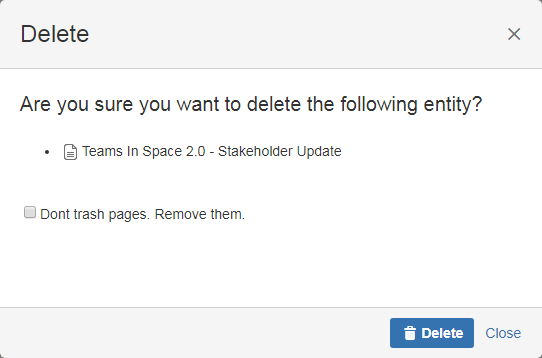
You can permanently delete pages by checking the option "Don't trash pages. Remove them".
Deleted pages with this option checked cannot be restored and deleting multiple pages works the same as deleting one page.
Renaming pages
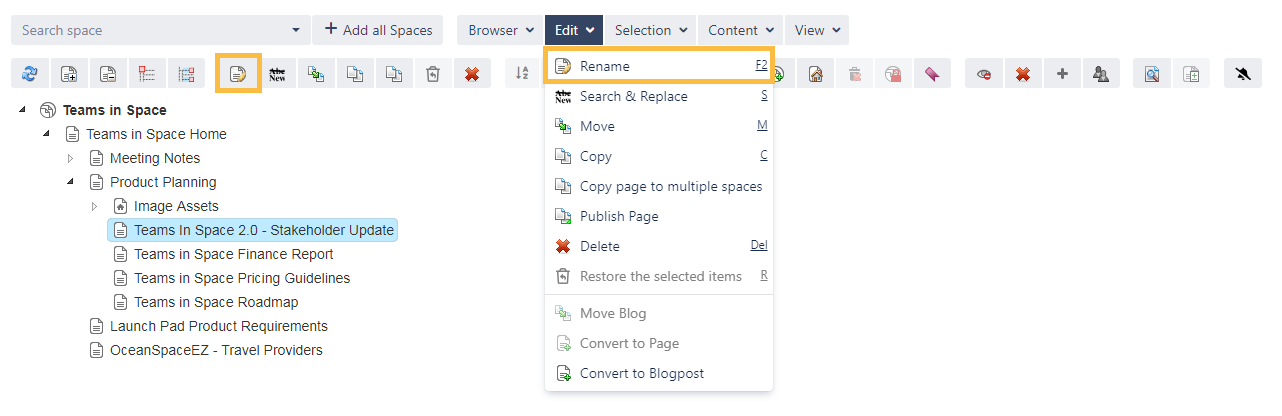
You can rename pages by selecting the page to be renamed and then by choosing one of the following options:
-
Click on e dit and r ename
-
Click on the rename button
-
Press F2
-
Use the context menu
The action will be completed by entering a new name and confirming by pressing enter or clicking somewhere else.
It is not possible to assign an identical page name twice in one space.
Moving pages
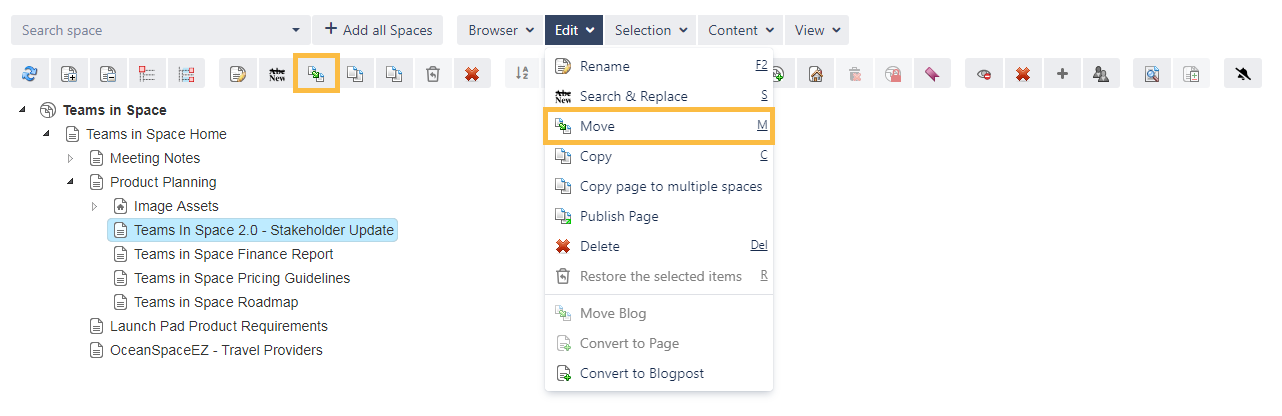
Pages can be moved by selecting them and then by choosing one of the following options:
-
Click on e dit and mo ve
-
Click on the move button
-
Press m
Pages can be reordered using drag and drop or with the move function to move pages and their children to another space.
Moving a page into a space containing a page with an identical name is not possible. You have to rename one of the pages before they can be moved.
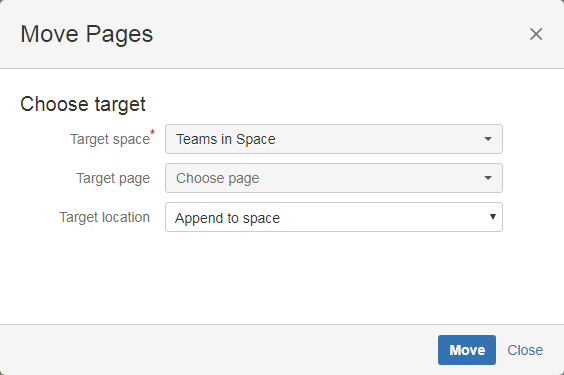
A window will open where you can choose the target space and optionally, a page in that space that the selected page should be moved to.
Sort child pages
This option compares pages and highlights the differences. Use it by selecting the pages through Ctrl+ left click and then by choosing one of the two available orders (From A to Z or from Z to A).

Comparing pages
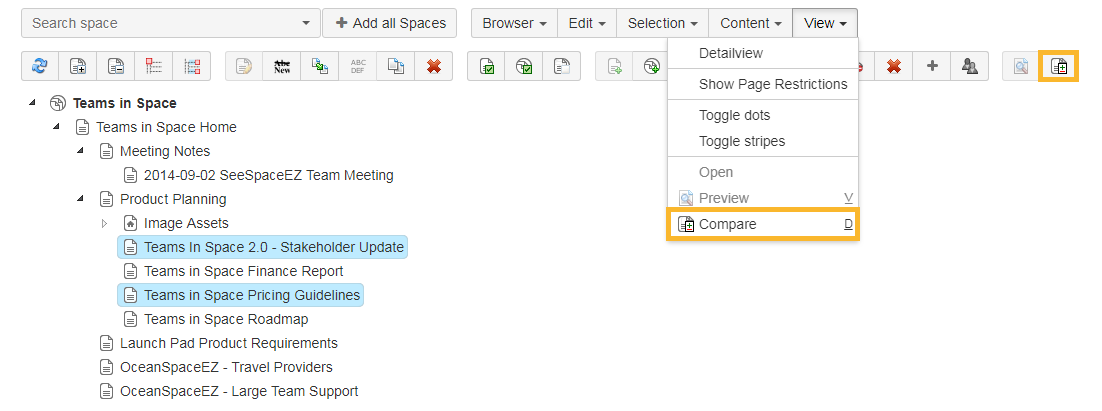
The compare feature can be executed in two directions. It depends on the order in which the pages were selected.
To compare pages, use one of the following options:
-
Click on v iew and c ompare
-
Click on the compare button
-
Press d
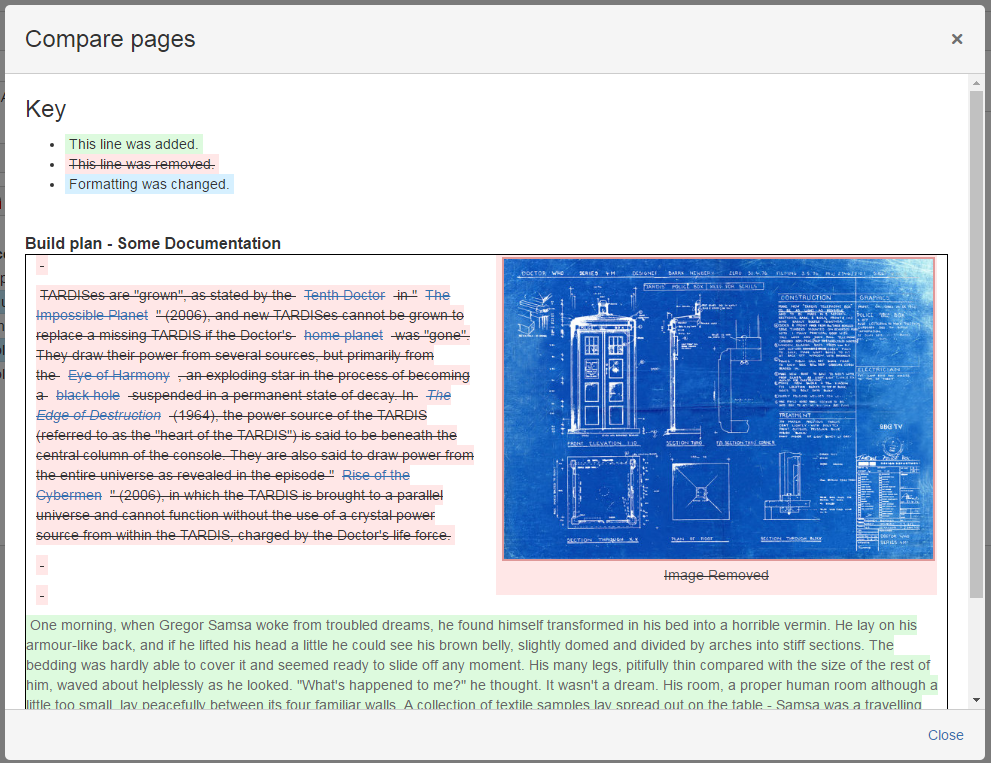
The window will highlight the differences using the following colors:
-
Green : what has been added
-
Red : what has been deleted
-
Blue : the format has changed
Viewing pages
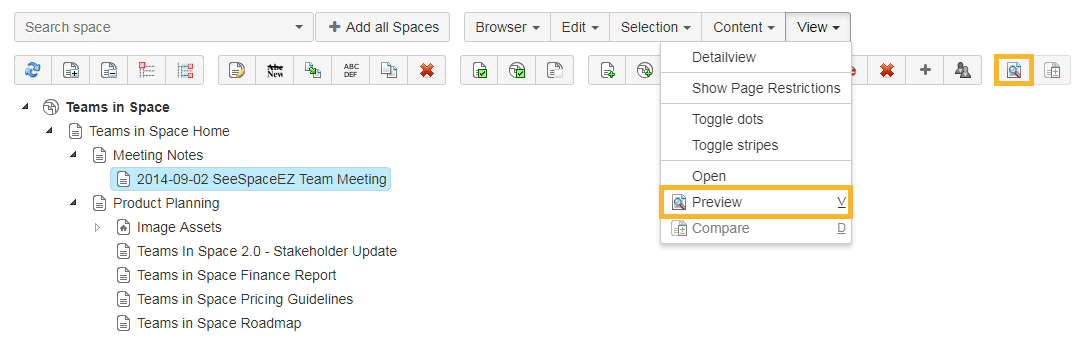
To preview pages in the Space Admin Browser select a page and then by choosing one of the following options:
-
Click on v iew and p review
-
Click on the preview button
-
Press v
-
Use the context menu
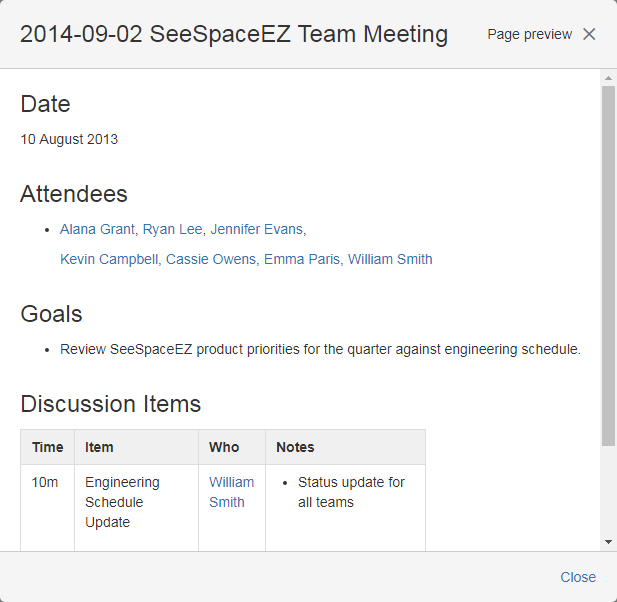
A window will show a little preview of the page you have selected.
The links in the preview dialog are disabled.
Setting a new home page
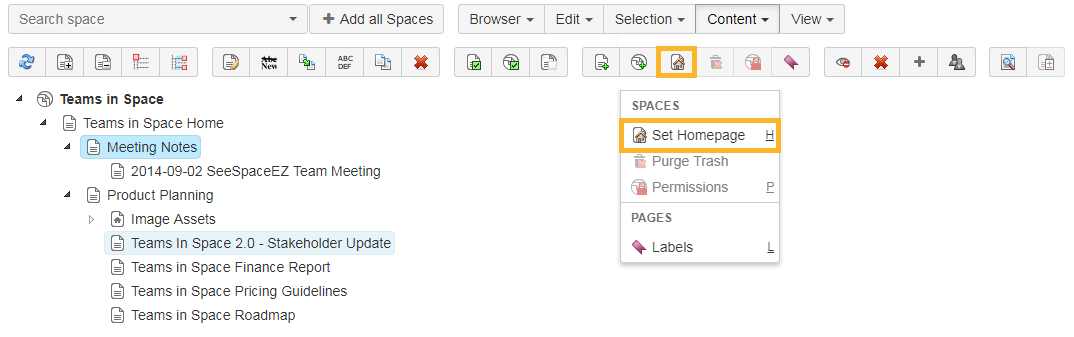
A little home symbol shows the current homepage. This can be changed within the Space Admin Browser by selecting a new page and then by choosing one of the following options:
-
Click on the Set Homepage button
-
Use the Context menu
-
Press h
Publishing pages
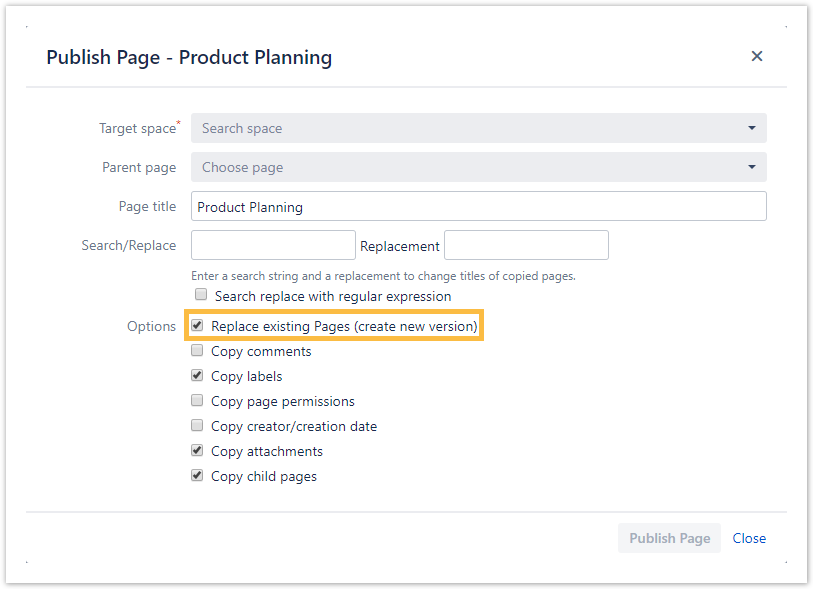
To publish a page choose the p ublish option in the context menu of a page or use the publish button.
If you create a version the following will happen:
-
The page to be published will be copied into another space
-
The current page with the same name in this space will be overwritten
-
A new version will be created in the Confluence page history
This is a good way to maintain documentation.
Editing page labels
The editor will show all existing labels from all selected pages, posts, and attachments.
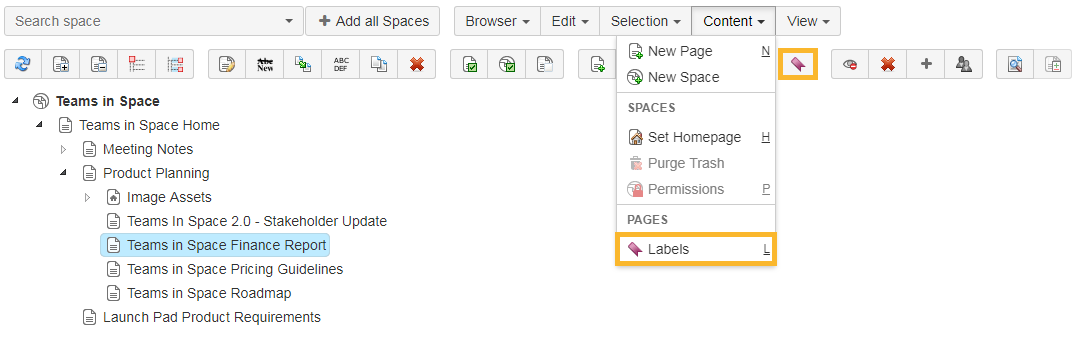
Labels can be added to all selected entities or deleted from the entity where it is set. You can do this by selecting a specific page and then by choosing one of the following options:
-
Click the label button
-
Use the context menu
-
Click c ontent and l abels
-
Press L
There are 3 options that can be chosen when editing the labels:
-
Add: Add new labels to the page
-
Set: Overwrite the existing labels on the page with the new ones
-
Delete: Delete the entered labels from the page
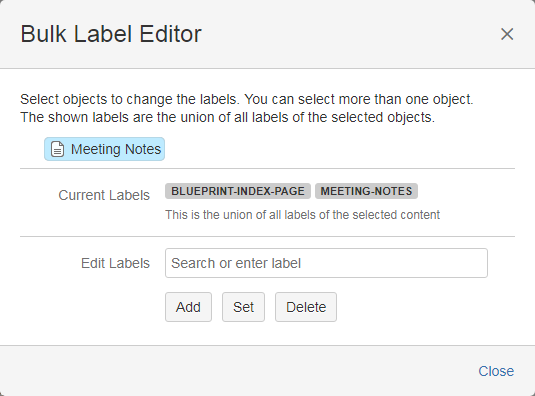
You can only add, set, or remove labels if you have the permission to edit the page.
Page permissions
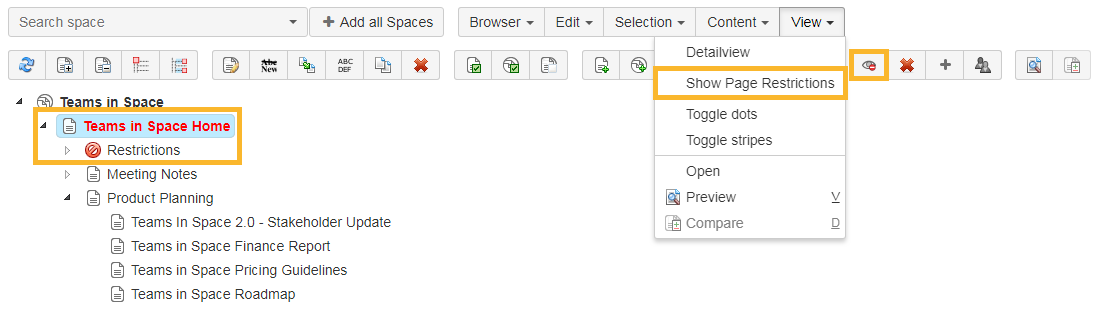
All pages in the current spaces which have a restriction will be highlighted in red.
If a page has any restrictions they can be seen by selecting the page and then by choosing one of the following options:
-
Use the highlight page restrictions button
-
Click on the ví ew menu and S how Page Restrictions
Add page permissions
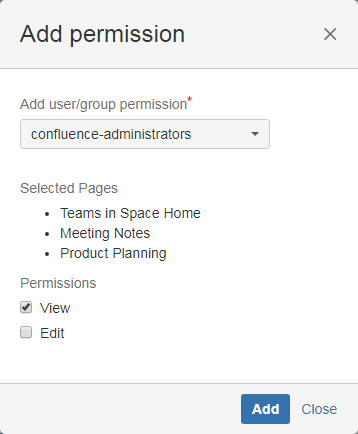
Page Permissions can be added by selecting all pages that should have the specific permissions and clicking the Add Page Permissions button.
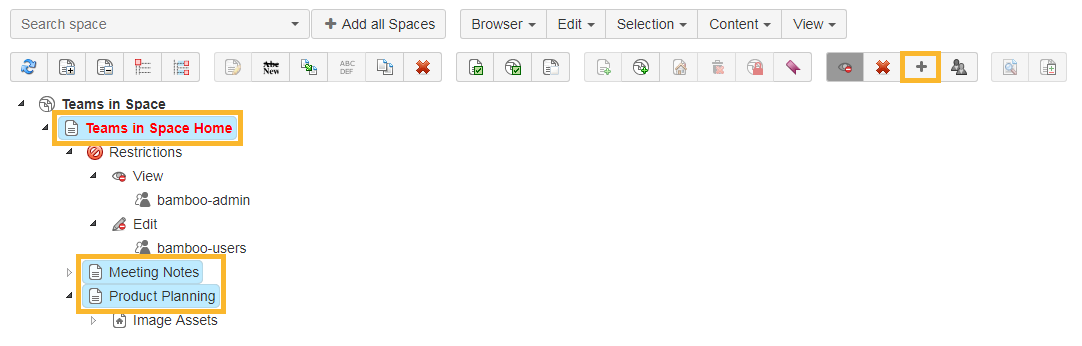
In the next window that opens a group or user, and the specific permission can be selected.
Deleting page permissions
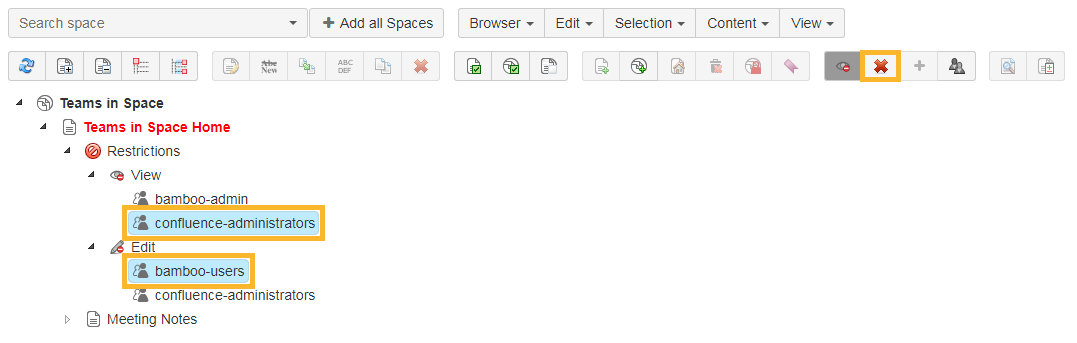
To remove page permissions, you can delete specific user or group permissions.
You can also select and remove the view and edit permissions node at once. Furthermore, the page/blog post or the restriction node can be selected to delete all page/blog post permissions.
|
Selected item |
Option when clicking the delete button |
|---|---|
|
Page |
Delete all page permissions |
|
Restrictions node |
|
|
View/edit node |
Delete all view/edit permissions |
|
user/groups |
Delete the user/groups permission |
Use the window shown to search for specific users and groups.
User/group information
User/group information can easily be viewed in the Space Admin Browser. It is useful to check which users are in a specific group.
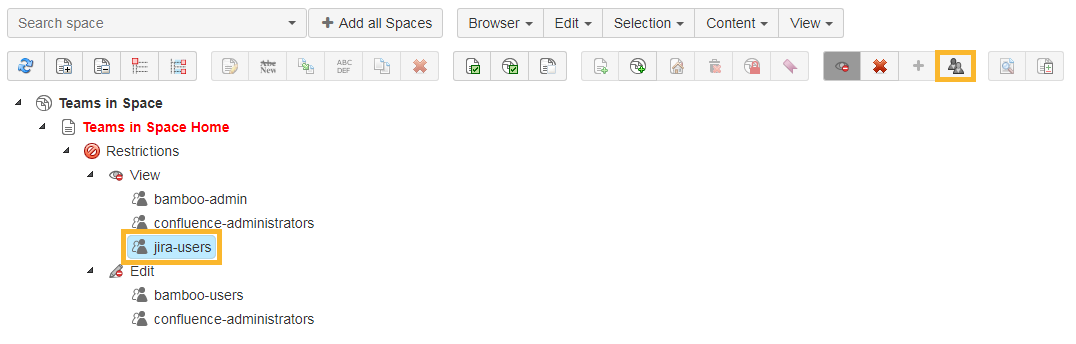
By selecting the specific group and clicking the User/Group information button, all group members will be shown in a popup window.
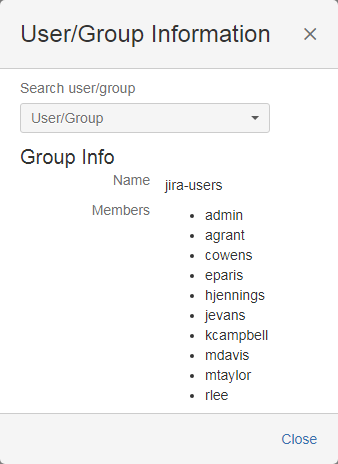
In the shown popup window it can be searched for specific users and groups.
Check the following table for more helpful shortcuts to save you time while managing your pages.