
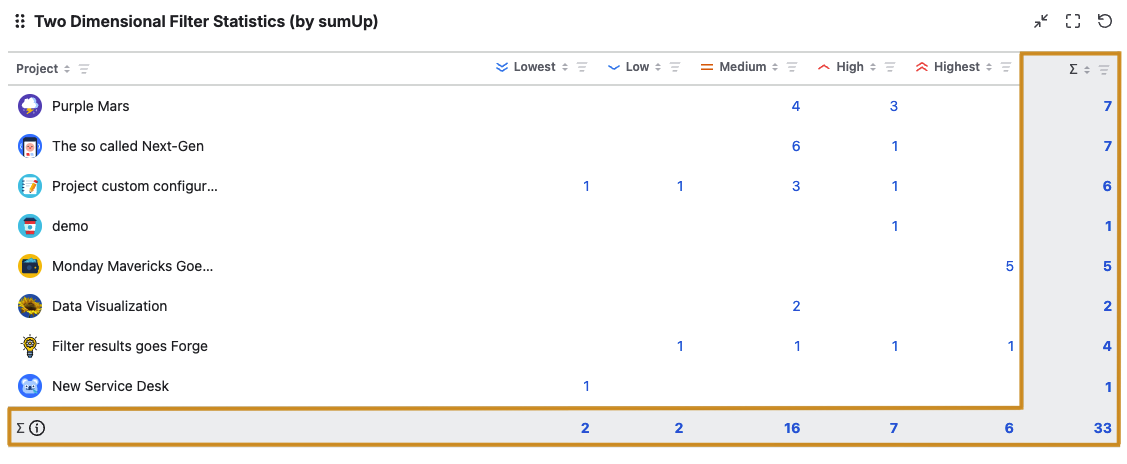
The Two Dimensional Filter Statistics essentially works exactly like the built-in Jira Two Dimensional Filter Statistics gadget - with additional totals for both columns and rows.
Essential configuration
|
|
|
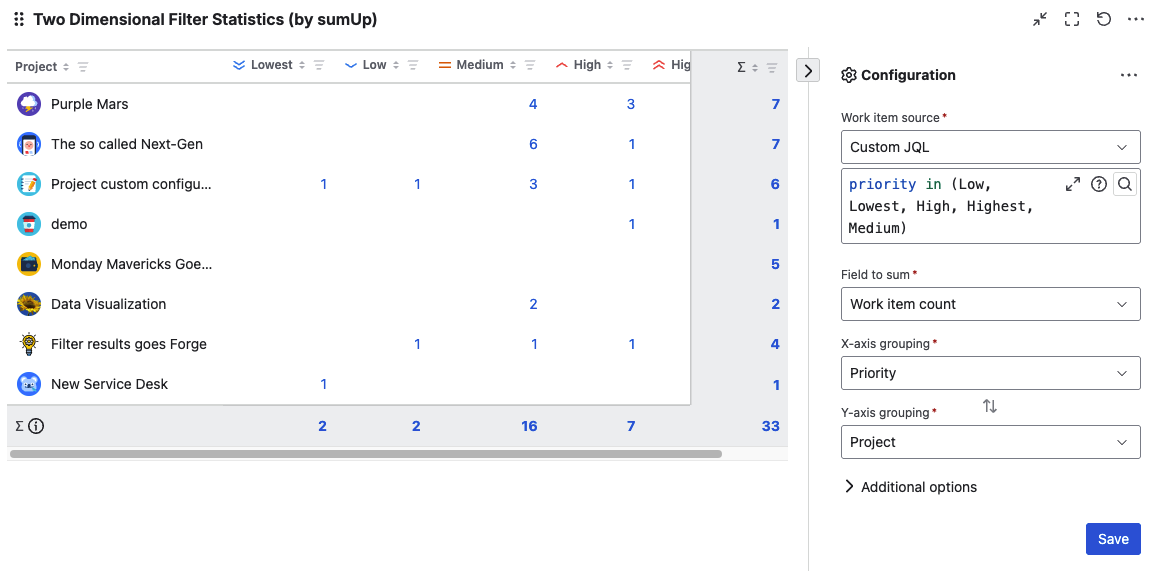
Work item source |
Select an existing filter or Custom JQL to define the work item that you want to analyze. Using Custom JQL allows you to narrow down the result set ad-hoc without the need to create a filter. |
|
Field to sum |
Select the field that you want to calculate a sum for. Only certain fields can be summed up (e.g., numeric fields, text fields with numeric values, etc.). See Supported Fields for a full list of supported fields. If you just want to count the number of work items (e.g. per status and assignee), then you must select Work item count. |
|
X-axis grouping |
Select the field that will be used to group the results by on the x-axis. 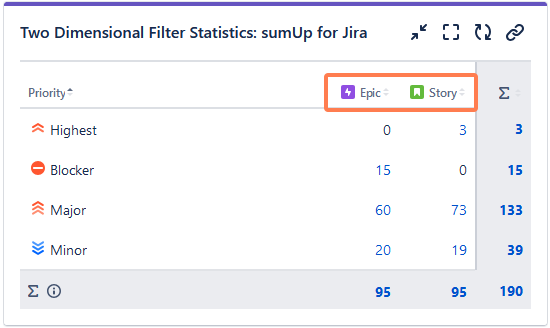
|
|
Switch x and y axis |

To switch axes, simply click the two arrows. |
|
Y-axis grouping |
Select the field that will be used to group the results by on the y-axis. 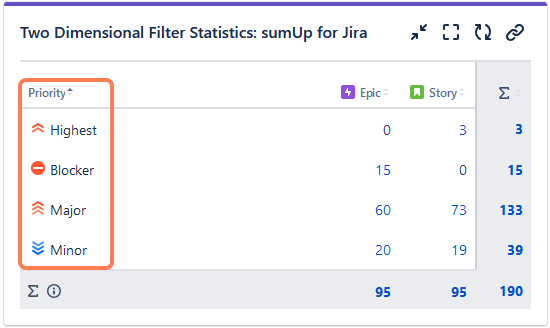
Click a column heading on the table to sort field ascending or descending. Status, Priority, and Resolution use the order defined on their Jira pages. |
|
You only see the following options if you have picked a date or date-time field to show/group by on the x- or y-axis. |
|
|
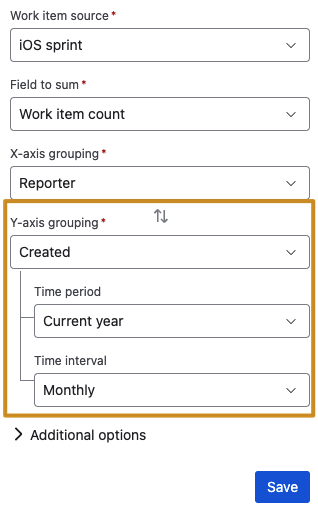
Time period |
Set a default time period for date or date-time fields (e.g., Due Date, Created): Current week, Current month, Current quarter, Current year, All-time. |
|
Time interval |
Set a default aggregation level for date or date-time fields: Daily, Weekly, Monthly, Quarterly, Yearly. |
Additional options
|
Rows per page |
Choose how many rows (x-axis) you want to display when viewing the gadget. Additional results will be paginated.
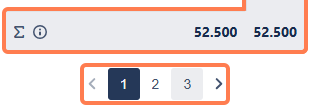
The sum rows will show the total of all results regardless of the page they are on. |
|
Time format |

For duration fields like Original Estimate, Time Spent, etc. you can now choose a custom format such as Pretty, Compact, Days, Hours, or stick to System settings. |
|
Show work item links |
Check this option to make each result clickable. Once you click any highlighted number you will see the underlying JQL query and results in the Work Item Navigator.
Leave unchecked if you rarely use the Work Item Navigator or experience slow loading times. |
|
Reload every 15 min |
Enabling this option is useful when displaying information that needs a periodic and automatic refresh, particularly when the gadget is displayed on a wallboard. |
|
Group by name |
By default, results are grouped by their internal ID, which may result in some values/options (like Versions, Components, Work item type, Severity, Sprint, Status (especially in team-managed projects), option-based fields) showing up multiple times since they might have unique IDs. When checked, options with the same name are treated as one. before 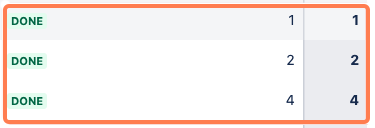
after 
|
|
Show item count in cell |
When enabled, the number of work items will appear in parentheses within the table. 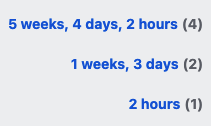
Note: This option is hidden if “Work item count” is selected. To use this feature, choose a different field e.g. “Original Estimate” in the Field to sum picker.
|
Gadget features
🔽 Advanced column filtering
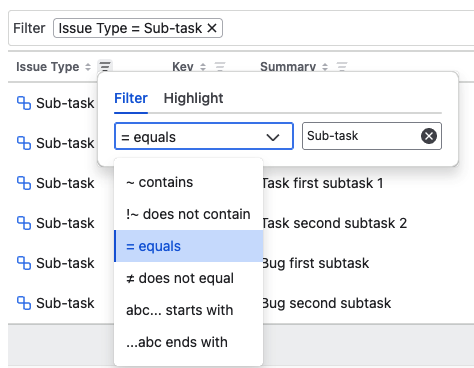
Unlock deeper insights and eliminate manual searching with our new intelligent column filters. Instead of scrolling through endless rows, you can now isolate critical information in seconds using filtering logic tailored to your specific data.
Pro tip: Apply filters to multiple columns to narrow your results further. The gadget automatically combines your criteria using logical AND, displaying only the records that meet all specified conditions.
Good to know
Filters are saved per user and remain persistent even after a page refresh.
📅 Date drill down
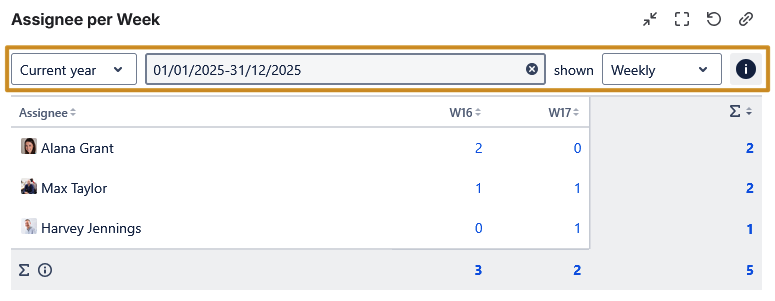
Understand how your work evolves over time. Drill down when you are grouping the work items by a date or date-time based field. Focus on a relevant time period and break results down into intervals to compare activity, spot trends, and identify busy periods: for example, see the weekly trend of the bug reported by different testers.
To see the drill down, select the date or date-time field you want to group the result in X-axis grouping or Y-axis grouping picker. Afterwards, select the time period and the time interval.
Note: You can only drill down on one axis at a time. Please select either a date or a date-time field for either the X-axis or the Y-axis grouping picker, but not both simultaneously.
Once you save it, you can also change the parameters from the table view.
Explore one of our use case with date drill down.
🔄 Reordering the columns
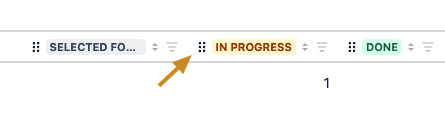
You can change the positions of the columns by simply clicking on the draggable handles before each column. Please note that this feature is only available in the edit mode and only for the values on the x-axis.
🖌️ Conditional cell highlighting
Identify important data quickly without filtering, isolating, or losing the context of your current gadget view. Shed light on what matters most in your gadget data. Define highlight rules for a column, such as marking priority values like “Highest” or “High,” and matching cells will be visually emphasized using your chosen highlight color.
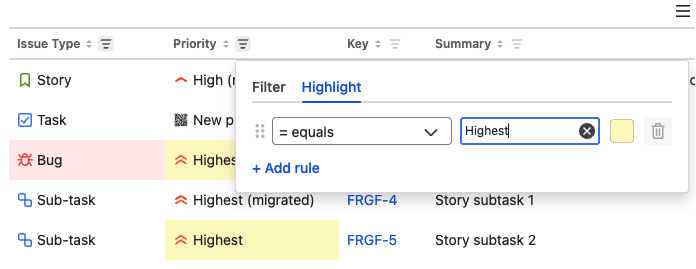
Pro-tip: You can define up to 3 highlight rules per column and can add highlight to as many columns that are present on the gadget table.
📥 Export / download CSV
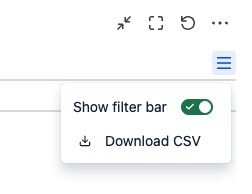
You can now download the gadget table as a CSV file directly from the gadget. Simply open the in-app menu and select Download CSV to export the full table for offline use, sharing, or further analysis.
📚 Use cases
| Use Case | Description |
|---|---|
| Work items due this week |
Get a weekly overview of the upcoming work items due for each assignee. |
| Risk and impact matrix |
Assess the risk and impact of project work items at a glance. This view categorizes tasks by risk level and impact. |
| Project Work Item Overview |
Display the number of work items within a project, grouped by status and Work item type for better project tracking. |
| Weekly breakdown of assigned work items |
Monitor the workload of each team member on a weekly basis. This view displays the number of assigned tasks per assignee and time period. |